What is Computer Memory – Features, Functions, and Uses
Published: 21 Jul 2026
What is computer memory? Have you ever wondered how your computer remembers what you are doing? How does it open apps, save files, or switch between tasks so quickly? The answer lies in its memory.
Memory is the part of a computer that stores data and instructions. It helps the system process information and perform tasks without delays.
The type and amount of memory can affect your computer’s speed and overall performance. A system with enough memory can run programs more smoothly and handle multiple tasks with less lag.
In this guide, you will learn what memory is, how it works, the different types, and why it is important for everyday computing. By the end, you will have a clear understanding of this essential computer component.
What is Computer Memory?
Computer memory is the part of a computer that stores data and instructions. It gives the processor quick access to the information needed to run programs, open files, and complete tasks efficiently.
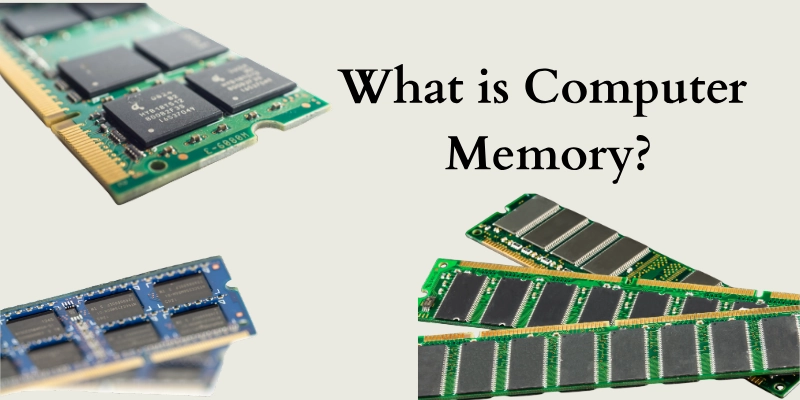
Its main purpose is to hold the information a computer needs while working. Without memory, the processor would have to search for data repeatedly, making every task much slower.
There are two main types of memory:
- Temporary memory (Volatile): Stores data only while the computer is turned on. The stored information is erased when the power is off. RAM is the most common example.
- Permanent memory (Non-volatile): Keeps data even after the computer is shut down. Storage devices like SSDs and hard drives are common examples.
Every computer needs memory to function properly. It allows the operating system, software, and files to work together, helping the device perform tasks smoothly and respond quickly to user commands.
How Does Computer Memory Work?
Memory works by receiving, storing, and providing data whenever the processor needs it. This process happens in just a fraction of a second, allowing your computer to run programs smoothly.
Receiving Data
When you open a program, file, or website, the required data enters memory from a storage device. The operating system places this information where the processor can reach it quickly.
Storing Information
Memory stores information in two ways:
- Temporary storage: Holds data only while the computer is running. It is used for active programs and current tasks.
- Permanent storage: Keeps files, documents, apps, and the operating system even after the computer is turned off.
Accessing Data
The processor (CPU) requests data whenever it needs it. Memory sends the required information almost instantly, helping programs open faster and reducing waiting time.
Processing Instructions
As you use applications, memory holds the data and instructions needed to complete each task. It works closely with the operating system and the CPU so programs can run smoothly, switch between tasks, and respond to your actions.
Clearing or Saving Data
When you shut down the computer, temporary memory is cleared, and all unsaved data is lost. Any files you save are written to permanent storage, where they remain available the next time you turn on your computer.
Types of Computer Memory
Different types of memory have different jobs. Some store data only while the computer is running, while others keep important information even after it is turned off. Together, they help the system start, process tasks, and run efficiently.
RAM (Random Access Memory)
RAM is the temporary working memory used while the computer is running. It stores the data and information that the processor needs right away.
Why Does RAM Improve Multitasking?
RAM improves multitasking by providing enough working space for multiple programs, allowing them to run at the same time without slowing the system significantly.
- Allows multiple programs to run at the same time.
- Helps applications open and respond faster.
- Reduces delays when switching between tasks.
- Clears all stored data when the computer is powered off.
ROM (Read-Only Memory)
ROM is permanent memory that stores important startup instructions. Unlike RAM, its data remains available even when the computer is turned off.
BIOS/UEFI Basics
BIOS or UEFI is firmware stored in ROM. It checks the hardware during startup and prepares the operating system to load.
Cache Memory
Cache is a very fast type of memory located close to or inside the processor. It stores frequently used data so the CPU can access it much faster than from RAM.
L1,L2, and L3 Cache
These three cache levels work together to give the processor faster access to frequently used data, helping improve overall system speed and efficiency.
- L1 Cache: The smallest and fastest cache, built into each CPU core.
- L2 Cache: Larger than L1 but slightly slower. It stores additional frequently used data.
- L3 Cache: Shared by multiple CPU cores. It improves overall performance when several tasks run at once.
Virtual Memory
Virtual memory uses part of the storage drive as extra working space when RAM becomes full. This allows the computer to continue running even with limited physical memory.
Benefits
Let’s see the benefits given below.
- Supports more applications at the same time.
- Helps prevent programs from crashing when RAM is full.
- Improves system stability during heavy workloads.
Limitations
Let’s see the limitations given below.
- Much slower than physical RAM.
- May reduce overall performance if used frequently.
- Depends on available storage space.
Registers
Registers are the fastest type of memory and are built directly into the processor. They hold small amounts of data and instructions that the CPU is using at that exact moment.
Purpose in Data Processing
Registers play a key role in data processing by holding the information and instructions the CPU needs immediately, allowing tasks to be completed as quickly as possible.
- Store values needed for immediate calculations.
- Hold instructions while they are being executed.
- Speed up communication inside the processor.
- Help the CPU complete tasks efficiently without unnecessary delays.
Main Functions of Computer Memory
Memory performs several important tasks that help a computer run smoothly.
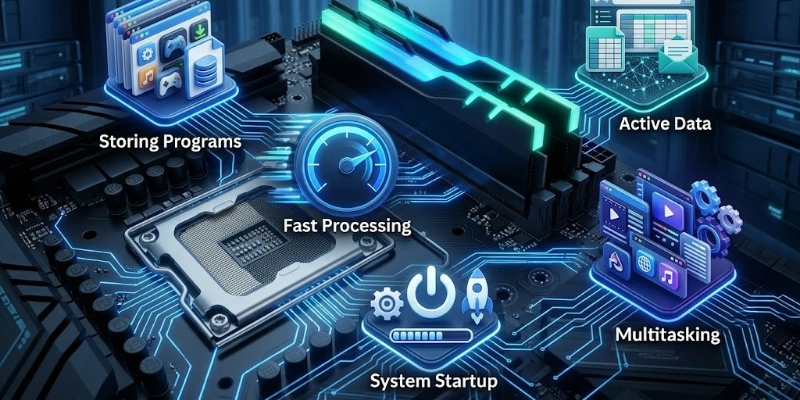
It stores information, supports active programs, and allows the processor to access data quickly.
- Storing Programs: Holds the operating system and applications while they are running.
- Holding Active Data: Keeps currently used files, documents, and information ready for quick access.
- Supporting Multitasking: Allows multiple programs to run at the same time and makes switching between them easier.
- Speeding Up Processing: Gives the processor fast access to data and instructions, improving overall performance.
- Assisting System Startup: Helps load the operating system and essential files when the computer is turned on.
Key Features of Computer Memory
Different types of memory have unique features that affect how a computer performs. Understanding these features can help you choose the right hardware for your needs.
Speed
Speed refers to how quickly memory can read or write data. Faster memory allows the processor to get information more quickly, improving overall system performance.
Memory Access Time
Memory access time is the time it takes to locate and deliver requested data to the processor. Lower access time means faster performance.
Capacity
Capacity is the amount of data that memory can hold. A larger capacity allows the system to handle bigger files and run more programs at the same time.
Measured in GB and TB
Memory and storage capacity are commonly measured in:
- GB (Gigabytes): Suitable for everyday computing.
- TB (Terabytes): Used for storing large amounts of data such as videos, games, and backups.
Volatility
Volatility describes whether data remains available after the computer is turned off.
Volatile vs Non-Volatile Memory
These two memory types serve different purposes, with one providing temporary workspace and the other keeping data available for future use.
- Volatile Memory: Loses stored data when the power is off. RAM is the most common example.
- Non-Volatile Memory: Keeps data even without power. SSDs, hard drives, and ROM are common examples.
Reliability
Reliable memory stores and retrieves data accurately. High-quality memory reduces errors and helps maintain stable system performance over time.
Stable Data Storage
Reliable storage helps protect important files and ensures that saved information remains available when needed.
Compatibility
Memory must be compatible with the computer’s motherboard and processor to work correctly. Using the right type ensures better stability and performance.
Matching Memory with Hardware
Before upgrading, check that the memory matches your system’s:
- Memory type (such as DDR4 or DDR5)
- Supported speed
- Maximum capacity
- Number of available memory slots
Computer Memory vs Storage
The terms memory and storage are often confused, but they have different purposes. Memory helps the computer work with data, while storage keeps files and programs for long-term use.
| Feature | Memory (RAM) | Storage (SSD/HDD) |
| Purpose | Holds active data | Saves files long term |
| Data Life | Temporary | Permanent |
| Speed | Very fast | Slower |
| Capacity | Usually 4–64 GB | Usually 256 GB–4 TB+ |
| Power Off | Data is erased | Data stays safe |
| Used For | Running apps | Storing files |
| CPU Access | Direct and quick | Through storage controller |
| Upgrade Effect | Better multitasking | More file space |
| Examples | RAM, Cache | SSD, HDD, USB drive |
What is Storage?
Storage is the part of a computer that keeps files, applications, photos, videos, and the operating system even after the computer is turned off.
Key Differences
Although memory and storage work together, they perform different tasks that affect your computer’s speed, performance, and ability to save data.
- Memory is used while the computer is running.
- Storage keeps data for future use.
- Memory is much faster than storage.
- Storage offers much larger capacity.
Speed Comparison
Memory provides almost instant access to data, helping programs run smoothly. Storage is slower because it is designed to keep data safely for long periods.
Capacity Comparison
Memory is available in smaller sizes, while storage is designed to hold much larger amounts of data.
Examples of Memory and Storage Devices
The following examples show common gadgets used for temporary processing and long-term data storage in modern computers.
| Memory | Storage |
| RAM | SSD |
| Cache | HDD |
| Registers | USB Flash Drive |
| ROM | Memory Card |
Which One is More Important?
Both are essential and serve different purposes. Memory improves speed and multitasking, while storage keeps your files and software safe. A computer needs both to work properly.
RAM vs ROM
RAM and ROM are two important types of memory, but they serve different purposes. RAM supports everyday tasks while the computer is running, whereas ROM stores the instructions needed to start the system.
| RAM | ROM |
| Used for active tasks | Used for startup instructions |
| Very fast | Slower than RAM |
| Data is lost after power off | Data stays after power off |
| Read and write | Mostly read-only |
| Helps run apps | Helps start the computer |
| Example: DDR4 RAM, DDR5 RAM | Example: BIOS, UEFI firmware |
Purpose
RAM provides temporary space for active tasks, while ROM stores the essential instructions required to start the computer.
Speed
RAM is much faster because the processor accesses it continuously during normal operation. ROM is accessed mainly during startup.
Data Retention
RAM loses its contents when the computer is turned off. ROM keeps its stored information even without power.
Examples
Let’s look at some examples.
- RAM: DDR3, DDR4, DDR5
- ROM: BIOS chip, UEFI firmware
Key Differences
Here are the key differences that help you understand how RAM and ROM work differently in a computer.
- RAM is temporary, while ROM is permanent.
- RAM supports running applications, while ROM starts the computer.
- RAM allows frequent changes, while ROM stores fixed instructions.
- Both are essential for normal computer operation.
Common Uses of Computer Memory
Memory plays an important role in many everyday and professional tasks. It helps programs run smoothly and allows the system to process data efficiently.
- Running Applications: Keeps active programs ready for quick access and smooth operation.
- Gaming: Supports game data, graphics, and background processes for better gameplay.
- Web Browsing: Helps load websites, manage multiple tabs, and improve browsing speed.
- Video Editing: Handles large media files and supports smooth editing and previewing.
- Programming: Stores code, development tools, and project data while software is being created and tested.
- Business Tasks: Supports office applications, spreadsheets, presentations, and communication tools.
- Scientific Computing: Processes large datasets and complex calculations used in research and analysis.
Benefits of Computer Memory
Having enough memory helps a computer perform everyday tasks more efficiently.
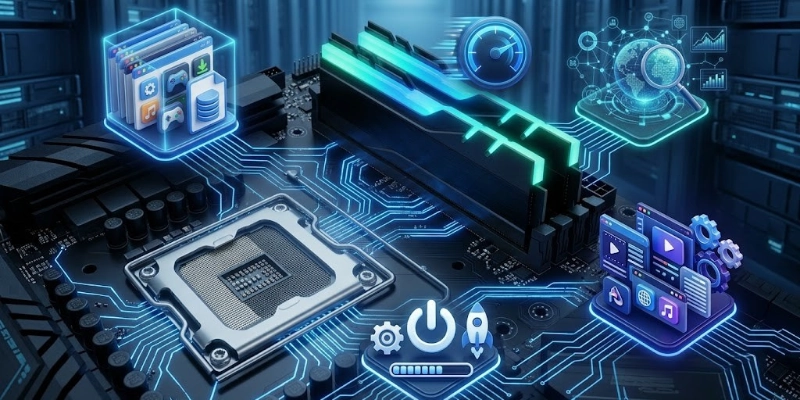
It improves speed, responsiveness, and the overall user experience.
- Performance: Provides quick access to data, allowing the system to complete tasks more efficiently.
- Multitasking: Lets you run multiple programs at the same time with fewer slowdowns.
- Responsiveness: Helps applications open faster and run more smoothly during use.
- Booting: Supports quicker startup and reduces the time needed to load programs and files.
- Experience: Creates a more responsive system with fewer delays, making everyday computing easier and more enjoyable.
Limitations of Computer Memory
Although memory improves computer performance, it also has some limitations. Understanding these drawbacks can help you make better decisions when buying or upgrading a computer.
- Volatility: RAM loses all stored data when the computer is turned off unless the data is saved.
- Capacity: Limited memory can reduce performance when many programs run at the same time.
- Compatibility: Not every memory module works with every motherboard or processor.
- Cost: Larger and faster memory modules usually cost more.
- Upgradability: Some computers have limited memory slots or fixed memory, making upgrades difficult.
How to Choose the Right Computer Memory?
Selecting the right option is easier when you understand your computer’s requirements and how you plan to use it. The right choice can improve performance and provide better value over time.
Memory Type
Different generations are designed for different systems, so always choose one that your device supports.
DDR4 vs DDR5
DDR4 and DDR5 are the two most common memory generations. The table below compares their main features to help you understand the differences.
| DDR4 | DDR5 |
| Lower price | Higher price |
| Mature technology | Newer technology |
| Good for most users | Better for heavy workloads |
| Works with older boards | Needs newer boards |
Capacity
Choose a size that matches your daily tasks.
- 4 GB: Basic tasks
- 8 GB: Everyday use
- 16 GB: Gaming and creative work
- 32 GB+: Professional workloads
Speed
Faster modules can improve system responsiveness when supported by your hardware.
Memory Frequency
Frequency is measured in MHz. Higher values can deliver better performance, but only if your motherboard and processor support them.
Compatibility
Always check whether the new module matches your system before purchasing.
Motherboard and CPU Support
Verify the following:
- Supported generation
- Maximum size
- Supported frequency
- Available slots
Budget
Buy according to your actual needs instead of choosing the most expensive option. A balanced upgrade often provides the best value for everyday users.
Signs You Need More Computer Memory
If your computer struggles with everyday tasks, it may be time to upgrade its memory.
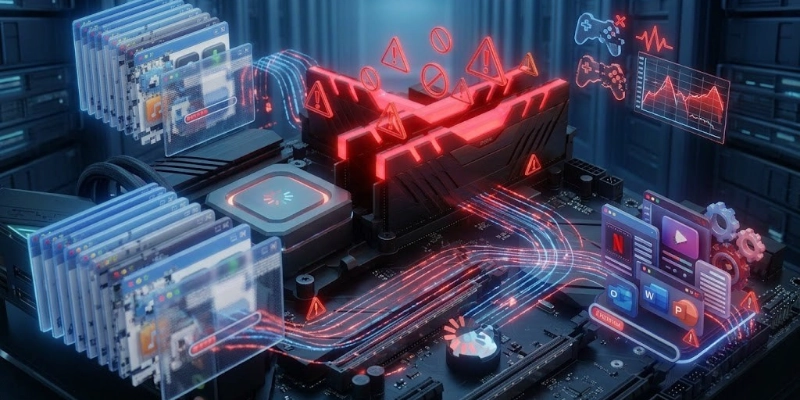
Here are some common signs to watch for:
- Performance: The system takes longer to respond to commands and complete tasks.
- Freezing: Programs stop responding or freeze during normal use.
- Loading: Applications take a long time to open or switch between.
- Lag: Multiple browser tabs cause slowdowns or delayed responses.
- Gaming: Games experience lag, stuttering, or longer loading times.
Tips for Maintaining Computer Memory Performance
A few simple habits can help your computer run more smoothly and reduce unnecessary slowdowns over time.
- Close Unused Apps: Free up system resources by closing programs you are not using.
- Restart Regularly: Restart your computer to clear temporary data and refresh system resources.
- Update Your System: Install the latest operating system updates for better stability and performance.
- Scan for Malware: Remove harmful software that may use system resources and slow down your computer.
- Upgrade RAM: Add more RAM if your computer often struggles with multitasking or demanding applications.
Common Computer Memory Problems and Solutions
Memory-related issues can affect your computer’s speed and stability. The good news is that many of these problems have simple solutions.
| Problem | Solution |
| Not Detected | Reseat the memory module, clean the slot, or check compatibility. |
| Frequent Crashes | Run a memory diagnostic tool and replace faulty hardware if needed. |
| Blue Screen | Update drivers, test the memory, and check for hardware errors. |
| Slow Performance | Close unnecessary programs or install additional RAM if required. |
| Faulty Module | Replace the damaged module with a compatible one. |
Future Trends in Computer Memory
Memory technology continues to evolve to meet the growing demands of modern software, artificial intelligence, and high-performance computing.
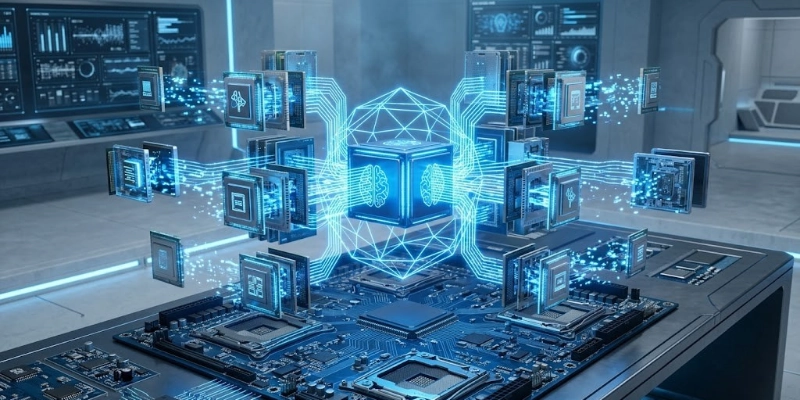
Here are some trends shaping the future.
- DDR5 and Beyond: Newer memory standards will offer higher speeds, greater bandwidth, and improved efficiency.
- AI Optimization: Future designs will better support AI workloads by handling large amounts of data more efficiently.
- Faster Cache: Improved cache technology will help processors access frequently used data even more quickly.
- Energy Efficiency: New memory technologies will reduce power consumption while maintaining strong performance.
- Higher Capacity: Future modules will provide larger capacities to support demanding applications and bigger datasets.
Conclusion
Computer memory is an essential part of every computer. It stores data, supports running programs, improves multitasking, and helps the system perform tasks efficiently. Understanding the different types of memory, their functions, and how to choose the right one can help you make better decisions when buying or upgrading a computer.
Whether you are a student, professional, or everyday user, having the right amount and type of memory can make your computer faster, smoother, and more reliable. Choosing memory that matches your needs and hardware will help you get the best performance and a better overall computing experience.
FAQs
Find quick answers to the most common questions about computer memory in the FAQs below.
Computer memory stores the data and instructions needed to run programs. It helps the processor access information quickly while you use your computer. Without it, the system cannot perform everyday tasks efficiently.
RAM is temporary and stores data only while the computer is running. ROM keeps important startup instructions even after the power is turned off. Both have different roles and work together to support the system.
No, they are different components. Memory is used for active tasks, while storage keeps files and programs for long-term use. A computer needs both to work properly.
The right amount depends on how you use your computer. For basic tasks, 8 GB is enough for most users, while gaming or creative work often benefits from 16 GB or more. Choose a capacity that matches your daily needs.
Yes, many desktop and laptop computers allow memory upgrades. You should first check your motherboard and processor for compatibility. Some thin laptops have fixed memory that cannot be upgraded.
Adding more RAM can improve performance if your current memory is limiting your system. It helps when running multiple programs or demanding applications. However, adding extra RAM will not speed up every computer if enough memory is already available.
The computer may become slow when several programs are open. Applications can freeze or take longer to load. In some cases, the system may become unresponsive.
Registers are the fastest type because they are built directly into the processor. Cache memory is also very fast and stores frequently used data. Both help the CPU complete tasks more quickly.
The main types include RAM, ROM, cache memory, virtual memory, and registers. Each type performs a different function inside the computer. Together, they help the system run smoothly and efficiently.
You may notice slow performance, frequent freezing, or delays when opening programs. Running many browser tabs or applications at once can also cause slowdowns. If these problems happen often, upgrading your memory may help.





- Be Respectful
- Stay Relevant
- Stay Positive
- True Feedback
- Encourage Discussion
- Avoid Spamming
- No Fake News
- Don't Copy-Paste
- No Personal Attacks
- Be Respectful
- Stay Relevant
- Stay Positive
- True Feedback
- Encourage Discussion
- Avoid Spamming
- No Fake News
- Don't Copy-Paste
- No Personal Attacks
