What is a Docking Station – Uses, Types and Benefits
Published: 7 Aug 2026
Laptops are easy to carry, but they often have a limited number of ports. If you want to connect a monitor, keyboard, mouse, printer, or other devices, you may quickly run out of available ports. What is a docking station? It is a device that adds more connections to your laptop and helps you use several accessories at the same time.
You can connect the dock to your laptop with a single cable and then connect your other devices to it. This makes it easier to switch between a portable laptop and a full desktop-style workspace without plugging in each device separately.
What is a Docking Station?
A docking station is a device that adds extra ports and connections to a laptop. It lets you connect several external devices through one main connection, making your laptop easier to use at a desk.

It can help turn a laptop into a desktop-like workstation by allowing you to connect a monitor, keyboard, mouse, printer, external storage, Ethernet cable, and headphones or speakers.
For example: You can connect your laptop to the dock with one cable. Then, your monitor, keyboard, mouse, and other accessories can stay connected to the dock. When you want to use your laptop somewhere else, you can simply disconnect that one cable and take the laptop with you.
How Does a Docking Station Work?
A docking station works as a connection point between your laptop and other devices. Instead of plugging every accessory directly into the laptop, you connect them to the dock.
- Connect the dock to your laptop: Use a compatible USB-C, Thunderbolt, or other supported cable.
- Connect your devices: Plug your monitor, keyboard, mouse, storage drive, or other accessories into the available ports.
- The dock links the devices: It sends the required signals between your laptop and the connected accessories.
- Data and power are transferred: Depending on the model, the connection can carry data, video, audio, and power.
- Use your accessories: Your laptop can now communicate with the connected devices through the dock.
What Happens When You Connect a Laptop to a Dock?
Once connected, the laptop detects the available devices and allows you to use them. For example, the monitor can display your laptop’s screen, while the keyboard and mouse let you control it.
The main advantage is the single-cable setup. When everything is already connected to the dock, you usually need to connect only one cable to your laptop to start using your complete desk setup.
What Ports Does a Docking Station Have?
The available ports depend on the model, but most docking stations offer a mix of USB, display, networking, audio, and memory card connections. Each port is designed for a different type of device or task.
- USB-A Ports
USB-A ports are common for connecting everyday accessories such as keyboards, mice, USB flash drives, and external hard drives. They are useful when your laptop has only a few traditional USB ports.
- USB-C Ports
USB-C ports can support data transfer, charging, and accessories. Some also carry video signals, but the exact features depend on the laptop and the dock.
- HDMI and DisplayPort
HDMI and DisplayPort are mainly used to connect external monitors and TVs. They can support different resolutions and refresh rates depending on the dock and connected laptop.
- Ethernet Port
An Ethernet port lets you connect your laptop to a wired network. It can provide a more stable connection than Wi-Fi in many home and office setups.
- Audio Port
A 3.5mm audio port allows you to connect wired headphones, earphones, or speakers. This can be useful when your laptop’s audio port is difficult to access.
- SD and microSD Card Slots
SD and microSD slots let you read memory cards without needing a separate card reader. They are especially useful for transferring photos and videos from cameras and other devices.
- Power Delivery Port
A power delivery port can supply power to a compatible laptop through the dock. The charging speed depends on the dock’s power output and the laptop’s requirements.
Types of Docking Stations
Docking stations come in different types based on the connection they use, the devices they support, and how they are designed.
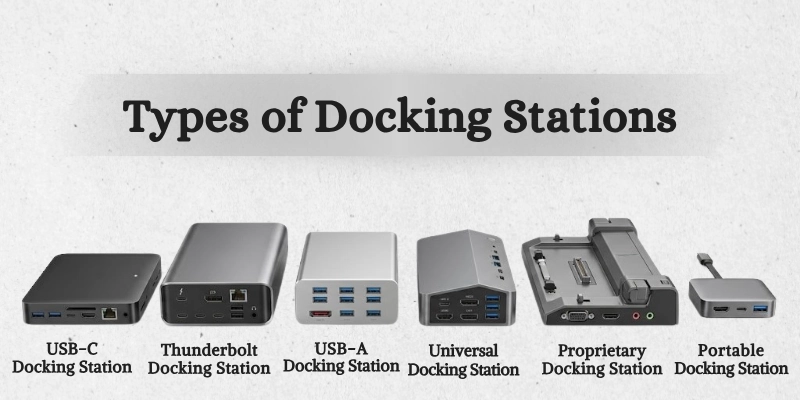
The right type depends on your laptop, workspace, and daily needs.
USB-C Docking Stations
USB-C models connect to a laptop through a USB-C port. They are a good choice for people who want to connect common accessories, displays, and other devices using a modern connection.
Best for: Everyday laptop users, students, and home-office setups.
Thunderbolt Docking Stations
Thunderbolt models use Thunderbolt connections to provide fast data transfer and support demanding setups. They can be useful for users who work with multiple displays, high-speed storage, or other high-performance accessories.
Best for: Professionals, content creators, developers, and users with advanced workstations.
USB-A Docking Stations
USB-A models connect through traditional USB-A ports. They are useful with older laptops that do not have USB-C or Thunderbolt connections.
Best for: Users with older laptops and basic office setups.
Universal Docking Stations
Universal models are designed to work with a wide range of laptops and operating systems. They can be a practical option when different people need to use the same desk setup.
Best for: Shared offices, workplaces, and users with multiple laptops.
Proprietary Laptop Docking Stations
These docks are made for specific laptop brands or models and may use a special connector or design. They can provide features that are closely matched to the supported laptop.
Best for: Users who want a dedicated setup for a compatible laptop.
Portable Docking Stations
Portable models are smaller and easier to carry than full-size desktop docks. They are useful when you often move between different work locations.
Best for: Travelers, students, remote workers, and people who work from different places.
What is a USB-C Docking Station?
A USB-C docking station is a dock that connects to a laptop through a USB-C port. It can provide access to additional connections for displays, storage devices, keyboards, mice, and other accessories.
How Does USB-C Connect the Dock?
You connect the dock to a compatible USB-C port on your laptop using a USB-C cable. Once connected, the laptop can communicate with the devices attached to the dock.
USB-C Data vs. Video Support
Not every USB-C port can send video signals. Some ports are mainly designed for data transfer, while others can also connect to an external display. Before using a monitor through a USB-C dock, check whether your laptop’s USB-C port supports video output.
USB-C Power Delivery
USB-C Power Delivery, often called USB-C PD, allows compatible devices to receive power through the USB-C connection. A suitable dock can use this feature to charge a laptop while other accessories remain connected.
Why USB-C Ports Are Different
Although USB-C ports have the same physical shape, their capabilities can vary. One port may support data only, while another may support data, video, and charging.
For this reason, check your laptop’s specifications before buying a USB-C dock. Look for information about data transfer, video output, and Power Delivery to make sure the connection supports the features you need.
What is a Thunderbolt Docking Station?
A Thunderbolt docking station uses Thunderbolt technology to connect a laptop with external displays, storage, networking equipment, and other accessories.
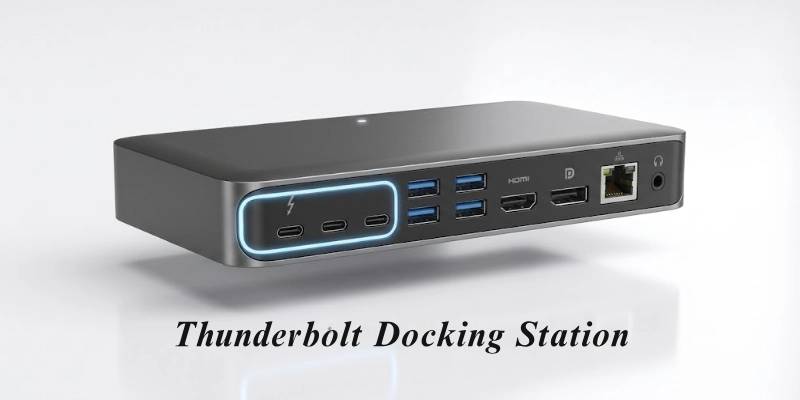
It is designed for users who need fast connections and a more demanding desk setup.
What is Thunderbolt?
Thunderbolt is a high-speed connection technology developed by Intel with support from Apple. It uses the USB-C connector on modern devices, but it can offer features and performance beyond standard USB connections.
Thunderbolt 3, 4, and 5
Thunderbolt has developed through several generations:
- Thunderbolt 3: Introduced high-speed connectivity through the USB-C connector.
- Thunderbolt 4: Added stricter requirements for features such as display and device support.
- Thunderbolt 5: Provides higher bandwidth for demanding tasks and advanced displays.
You do not need to choose a newer version simply because it has a higher number. Your laptop and other devices must also support the required Thunderbolt version.
Why Can Thunderbolt Docks Offer Higher Performance?
Thunderbolt can provide high bandwidth for moving data between a laptop and connected devices. This makes it useful when several demanding devices are connected at the same time, such as fast storage and external displays.
Multi-Monitor Support
A Thunderbolt dock can support multiple external monitors, depending on the laptop, dock, graphics hardware, and display requirements. Before buying one, check how many screens it supports and which resolutions and refresh rates are available.
High-Speed Storage and Networking
These docks can work well with fast external SSDs and high-speed network connections. This can benefit users who regularly transfer large files or need a reliable connection for demanding work.
Who Needs Thunderbolt?
Thunderbolt is mainly useful for people with demanding workflows. It can be a good choice for:
- Content creators
- Video editors
- Software developers
- Designers
- Professionals using multiple monitors
- Users who work with high-speed external storage
For basic tasks such as browsing, documents, and simple accessories, a standard USB-C dock may be enough.
What is a Docking Station Used For?
A docking station is mainly used to make a laptop more convenient for work, study, and everyday tasks. It can connect several devices and help create a more comfortable setup at home or in the office.
- Multiple Monitors
You can use it to connect one or more external monitors to a compatible laptop. This gives you more screen space for tasks such as research, editing, coding, or managing multiple applications.
- Keyboard and Mouse
A separate keyboard and mouse can make long work sessions more comfortable. Instead of connecting them directly to the laptop, you can keep them connected to the dock at your desk.
- Wired Ethernet
For a more stable network connection, you can connect an Ethernet cable to a compatible model. This can be useful for video meetings, large file transfers, online work, and other activities where a reliable connection matters.
- External Storage
External hard drives and SSDs can be connected for storing, backing up, or transferring files. This is helpful when the laptop does not have enough built-in storage.
- Charge
Some models can provide power to a compatible laptop while it is connected. This allows you to charge and use the computer without connecting a separate charger directly to it.
- Printers and Other Accessories
Printers, webcams, speakers, card readers, and other peripherals can be added to the same desk setup. This keeps commonly used accessories ready to use whenever you connect your laptop.
- Home Office
A dock can help turn a simple laptop setup into a more complete home office. You can keep your monitor, keyboard, mouse, network cable, and other accessories connected and ready for work.
- Workstation
For people who spend many hours at a desk, it can provide a convenient way to use a laptop with a larger display and several peripherals. When you need to leave, disconnecting the main cable lets you take the laptop with you.
Benefits of a Docking Station
Using one can make a laptop setup more convenient, especially when you regularly work at a desk.
- Ports: Gives you extra connections for different devices.
- External displays: Lets you use compatible monitors or TVs with your laptop.
- Cable clutter: Keeps several device connections in one place.
- Connections: You can keep your regular accessories connected and ready to use.
- Compatible laptops: Some models can supply power while the laptop is connected.
- Desktop-like workspace: Lets you use a laptop with a larger screen and external accessories.
- Time: One main connection can replace plugging in several devices individually.
- Home or in offices: Useful for remote work, study, and regular desk-based tasks.
Limitations of Docking Stations
Although a docking station can make a laptop setup more convenient, it also has some limitations. The experience depends on the dock, laptop, and devices you use.
- Cost: A good-quality model can be expensive compared with a simple USB hub.
- Compatibility limitations: Not every dock works with every laptop or operating system.
- Bandwidth: Connected devices may share the available bandwidth, which can affect performance when several devices transfer data at once.
- Monitor support: Different models support different numbers of displays, resolutions, and refresh rates.
- External power: Some full-size models require a separate power adapter to work properly.
- Drivers or software: Certain features may need additional drivers, firmware, or software.
- Laptop ports: The available features are limited by what your laptop’s ports can support.
- Laptop performance: A dock adds connectivity, but it does not improve the laptop’s CPU, GPU, or processing power.
USB Hub vs Docking Station
A USB hub vs docking station comparison can help you choose the right option for your laptop. Both add extra connections, but a USB hub is usually better for basic accessories, while a dock is more suitable for a complete desk setup.
| Feature | Docking Station | USB Hub |
| Ports | More and varied | Usually fewer |
| Monitors | Often supported | Limited, depending on model |
| Ethernet | Common | Less common |
| Charging | Often supported | Limited |
| Power | Usually uses external power | Often powered by the laptop |
| Best for | Full workstation | Basic port expansion |
Which One Should You Choose?
Choose a USB hub if you mainly need a few extra ports for devices such as a mouse, keyboard, or flash drive.
Choose a docking station if you want to connect monitors, wired internet, storage, and several other accessories for a more complete workstation.
Docking Station vs. Port Replicator
A port replicator and a docking station both help connect a laptop to external devices, but they are not exactly the same. The difference is mainly related to their design, connection type, and the features they provide.
What is a Port Replicator?
A port replicator is a device that adds extra ports to a laptop. It allows you to connect accessories such as a monitor, keyboard, mouse, or network cable without using the laptop’s built-in ports.
How is it Different From a Modern Dock?
Traditional port replicators were often designed to work with a specific laptop or connector. Modern docks usually offer a wider range of ports and can support features such as multiple displays, high-speed data transfer, and laptop charging.
Why Are the Terms Sometimes Confused?
The two terms are sometimes used interchangeably because both provide additional connections. However, modern products often use the term docking station even when they perform some of the basic functions associated with a port replicator.
USB-C and Thunderbolt Docks vs. Older Designs
Older port replicators commonly used proprietary connectors made for specific laptops. Modern USB-C and Thunderbolt docks use more widely supported connections and can work with many compatible computers.
Before choosing either option, check the laptop’s ports and the features you need. Compatibility can vary between models.
How to Choose a Docking Station?
Choosing the right model depends on your laptop, the gadgets you plan to connect, and how you use your computer.
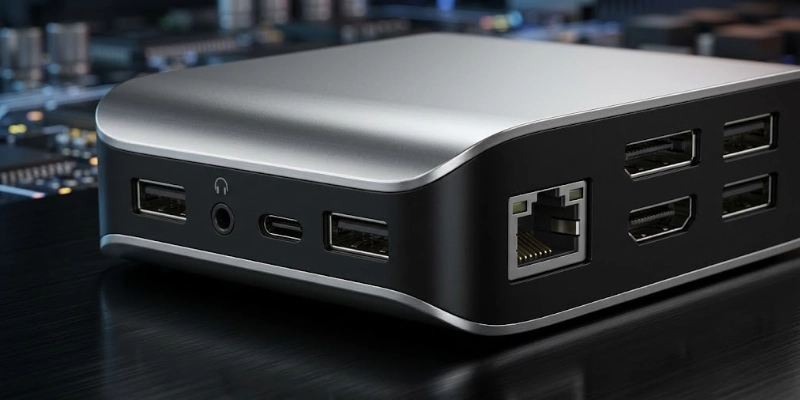
Check the following points before making a purchase.
- Laptop’s Ports
First, check which ports your laptop supports. Look for USB-C, Thunderbolt, USB-A, or other connections required by the dock. A USB-C connector alone does not guarantee support for every feature.
- Operating System Compatibility
Make sure the dock works with your operating system, such as Windows or macOS. Some features may require specific drivers or software.
- Decide How Many Monitors You Need
Think about how many screens you want to use. If you need two or more monitors, check that both the laptop and the dock support your desired setup.
- Display Resolution and Refresh Rate
Check the supported resolution and refresh rate before buying. This is especially important if you plan to use high-resolution or high-refresh-rate monitors.
- USB Port Speeds
USB ports can have different speeds. If you regularly transfer large files or use an external SSD, choose a model that offers suitable data speeds.
- Power Delivery
If you want to charge your laptop through the dock, check its Power Delivery output. Make sure it can provide enough power for your computer.
- Ethernet Speed
If you plan to use wired internet, check the Ethernet speed supported by the dock. Choose one that matches your network needs.
- Storage Needs
Think about the storage devices you will connect, such as external SSDs, hard drives, or memory cards. Make sure the model has the required ports and suitable transfer speeds.
- Portability
If you mainly use the dock at one desk, a larger model with more connections may work well. For travel or changing work locations, a smaller and lighter option may be more practical.
- Included Power Adapter
Some models include a power adapter, while others may require you to purchase one separately. Check what comes in the box before buying.
- Your Budget
Set a budget based on the features you actually need. A basic model may be enough for everyday accessories, while advanced setups may require a more capable and expensive option.
How to Set Up a Docking Station?
Setting up a docking station is usually simple. Follow these steps to get your devices ready:
- Place the dock near your workspace: Keep it somewhere easy to reach and connect.
- Connect the power adapter: If your model needs external power, plug in the included adapter.
- Connect your devices: Attach your monitors, keyboard, mouse, storage devices, and other accessories.
- Connect the dock to your laptop: Use the correct cable and compatible port.
- Install required drivers or software: Some models may need additional software for certain features.
- Configure display settings: Open your computer’s display settings and choose how you want your screens to work.
- Test the connected devices: Check your monitors, USB accessories, network connection, audio, and other devices.
How to Connect Two Monitors to a Docking Station?
To use two monitors, first check that both the laptop and dock support a dual-monitor setup. Then connect each screen to a suitable video port, such as HDMI or DisplayPort.
After connecting the monitors, connect the dock to your laptop and open the display settings. Select Extend if you want to use both screens as separate work areas, then adjust their position and resolution as needed.
If the second monitor does not appear, check the dock’s specifications, laptop compatibility, cables, and display settings.
Can a Docking Station Charge a Laptop?
Yes, some models can charge a compatible laptop while it is connected. This can reduce the need for a separate charging cable at your desk.
- Power Delivery: USB-C PD allows the dock to deliver power to a compatible laptop.
- USB-C Charging: The laptop must support charging through its USB-C connection.
- Wattage: Check the dock’s power rating to make sure it can provide enough power.
- Laptop Requirements: Different laptops need different amounts of power, especially high-performance models.
- Charging Speed: A lower-power dock may charge the laptop more slowly than its original charger.
- Power Sharing: Some of the available power may be used by the dock and connected devices.
Can a Docking Station Support Multiple Monitors?
Yes, some models can support multiple monitors, but the number of screens depends on the dock, laptop, connection type, and graphics capabilities.
- Single-monitor setup: A compatible dock can connect one external display for a larger workspace.
- Dual-monitor setup: Some models support two external screens, allowing you to extend your workspace across both.
- Triple-monitor setup: Certain advanced docks can support three displays, but this requires compatible hardware and connections.
- Resolution and refresh rate: Higher resolutions and refresh rates require more bandwidth, so check the dock’s supported display specifications.
- Laptop graphics limitations: Your laptop’s GPU and built-in display outputs can limit how many external screens it can handle.
- USB-C vs. Thunderbolt: Thunderbolt generally provides more bandwidth for demanding display setups, while USB-C support varies by laptop and dock.
Before buying: Check the dock’s monitor support together with your laptop’s specifications. A USB-C port alone does not guarantee support for multiple external displays.
Who Needs a Docking Station?
A docking station can be useful for people who regularly connect their laptop to several devices. It is especially helpful for users who want a more organized and comfortable desk setup.
- Remote workers: Useful for creating a dedicated home office setup.
- Office workers: Makes it easier to connect a laptop to workplace accessories.
- Students: Helpful when studying with an external monitor, keyboard, mouse, or other devices.
- Content creators: Useful for working with displays, storage drives, cameras, and other equipment.
- Programmers: Helpful for developers who use multiple screens and external peripherals.
- Designers: Useful for connecting larger displays and other creative tools.
- Gamers: Can help connect external monitors, keyboards, mice, network cables, and other gaming accessories.
- Multi-monitor users: A good option for people who need more than one screen for their work.
- Laptop users with limited ports: Helpful when the built-in connections are not enough for their daily needs.
Who Doesn’t Really Need One?
You may not need a docking station if you mainly use your laptop by itself and rarely connect external devices. It may also be unnecessary if your laptop already has enough ports for everything you use.
For occasional connections, a simple USB hub or adapter may be a more practical and affordable choice.
Common Problems With Docking Stations and Their Solutions
Even a good docking station can sometimes have connection or performance problems.
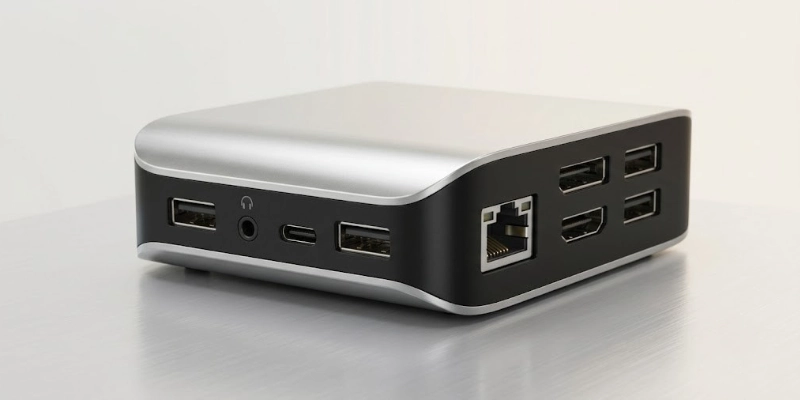
Most issues can be fixed by checking the cable, power, settings, or device compatibility.
Monitor is Not Detected
The connected screen may not appear when the laptop cannot detect the display properly. This can happen because of a loose cable, incorrect input, or a compatibility issue.
- Check that the video cable is connected properly.
- Make sure the correct input is selected on the monitor.
- Restart the laptop and reconnect the dock.
- Check whether the dock supports your monitor.
USB Devices Are Not Working
A keyboard, mouse, or storage device may stop responding after connecting to the dock. The problem can come from the USB port, accessory, or computer.
- Disconnect and reconnect the device.
- Try another USB port.
- Check whether the accessory works directly with the laptop.
- Restart the computer if the problem continues.
Laptop is Not Charging
Some docks may not provide enough power for a connected laptop. Charging can also fail when the dock’s power adapter is not connected correctly.
- Check that the dock’s power adapter is connected.
- Make sure the dock supports laptop charging.
- Check whether its power output meets your laptop’s requirements.
- Try the laptop’s original charger to identify the source of the problem.
Ethernet is Not Working
A wired network connection may fail if the cable, port, or network settings have a problem. Checking the connection step by step can help identify the cause.
- Make sure the Ethernet cable is firmly connected.
- Try another network cable or router port.
- Check your laptop’s network settings.
- Update the required driver if needed.
Dock Keeps Disconnecting
Frequent disconnections can make connected devices stop working temporarily. A loose cable, unstable power, or outdated software may cause this issue.
- Check the main connection between the laptop and dock.
- Try a different compatible cable.
- Make sure the dock has enough power.
- Update the dock’s firmware or drivers if available.
External Monitor Has Low Resolution
A monitor may display a lower resolution than expected after connecting through the dock. This can be caused by the cable, dock, laptop, or display settings.
- Check the display settings on your laptop.
- Make sure you are using a suitable video cable.
- Check the maximum resolution supported by the dock.
- Update your graphics driver if necessary.
Dock Gets Hot
It is normal for a dock to become warm during regular use. However, excessive heat may indicate poor airflow or a problem with the device.
- Keep the dock on a hard, open surface.
- Do not cover its ventilation areas.
- Disconnect devices you are not using.
- If it becomes unusually hot or stops working, stop using it and check the manufacturer’s guidance.
Audio is Not Working
Sound may not play through connected headphones or speakers if the wrong output is selected. A connection or driver issue can also prevent the audio device from working.
- Check that the correct audio output is selected.
- Make sure your headphones or speakers are connected properly.
- Check the volume settings.
- Reconnect the dock or restart the laptop if needed.
How to Maintain a Docking Station?
Proper care can help keep your dock working reliably for longer. A few simple habits can also prevent common connection and power problems.
- Keep ports clean: Remove dust and dirt carefully to maintain good connections.
- Avoid cable strain: Do not bend, pull, or tightly wrap cables around the dock.
- Use the correct power adapter: Use the recommended adapter to avoid power-related problems.
- Keep ventilation areas clear: Place the dock where air can circulate freely and avoid covering its vents.
- Update drivers and firmware: Install updates when recommended to improve compatibility and fix known issues.
- Disconnect devices safely: Follow your computer’s safe removal options when disconnecting storage devices or other accessories.
Are Docking Stations Worth It?
A docking station can be worth the cost if you regularly use your laptop with several external devices. However, it is not necessary for everyone, especially if you mainly use your laptop on its own.
A Dock Is Worth It If:
It can be a useful addition when your laptop is part of a regular desk setup. The benefits are greater when you connect several devices often.
- You regularly use multiple peripherals: It can make your daily setup easier to manage.
- You connect one or more external monitors: It can simplify a multi-screen workspace.
- You want a permanent desk setup: You can keep your regular accessories connected and ready.
- Your laptop has limited ports: It can provide the connections you need without constantly swapping devices.
You May Not Need One If:
A dock may not be necessary if your laptop already meets your connection needs. In some cases, a smaller and simpler accessory can be enough.
- You rarely connect external devices: A dock may offer more features than you actually need.
- Your laptop already has enough ports: You may not need additional connections.
- You mainly use your laptop while traveling: A smaller adapter or USB hub may be easier to carry.
Conclusion
What is a docking station? It is more than just an extra set of ports. It gives your laptop a simple way to fit into a complete workspace, making it easier to switch between working on the go and sitting at your desk.
Before choosing one, check your laptop’s ports, monitor needs, charging support, and the devices you use most. A well-matched model can make your daily setup cleaner, faster, and more convenient without changing the laptop itself.
FAQs
Still have questions about laptop connectivity? Explore the related guides below to find the right setup for your needs.
A docking station lets you connect a laptop to several external devices. These can include monitors, keyboards, mice, storage drives, and network cables. It is useful for creating a more complete desk setup.
No, they are designed for different levels of connectivity. A USB hub mainly adds extra USB ports, while a laptop dock can support displays, networking, charging, and other connections. A hub is usually better for simple needs.
Yes, some docks can charge compatible laptops through USB-C Power Delivery. The charging power depends on the dock and the laptop’s requirements. Always check the power rating before buying.
Yes, some models can connect two external monitors at the same time. Support depends on the laptop, dock, graphics hardware, and connection type. Check the supported display setup before purchasing.
No, compatibility can vary between laptops and docks. The connection type, operating system, and supported features all matter. Check the manufacturer’s compatibility information before choosing one.
No, a dock does not increase the laptop’s processing power. It mainly adds connectivity for external devices and displays. Your laptop’s CPU, GPU, RAM, and other internal hardware remain unchanged.
Some models work automatically, while others may need drivers or software. This depends on the dock, operating system, and features it provides. Check the manufacturer’s instructions if a connected device is not working correctly.
Yes, some docks can work with compatible desktop computers. However, a desktop often already has many built-in ports, so a dock may not be necessary. Check the available connections and supported features first.
Yes, many docks are compatible with Mac computers. However, display support and other features can vary between Mac models and dock types. Check compatibility before purchasing.
It can be useful if you regularly connect several devices to your laptop. It may be unnecessary if you rarely use external accessories or already have enough ports. Your daily setup should determine whether the extra cost is worthwhile.





- Be Respectful
- Stay Relevant
- Stay Positive
- True Feedback
- Encourage Discussion
- Avoid Spamming
- No Fake News
- Don't Copy-Paste
- No Personal Attacks
- Be Respectful
- Stay Relevant
- Stay Positive
- True Feedback
- Encourage Discussion
- Avoid Spamming
- No Fake News
- Don't Copy-Paste
- No Personal Attacks
