What is a Wireless Router? Setup, Types & Features
Published: 4 Nov 2026
Wireless routers are common in homes, offices, schools, and other places where several devices need to share an internet connection. Instead of connecting every gadget with a cable, a router lets smartphones, laptops, smart TVs, gaming consoles, tablets, and other devices connect wirelessly.
So, what is a wireless router? Simply put, it is a networking device that connects your local devices to the internet and allows them to communicate with each other over Wi-Fi. It also manages the flow of data between your devices and the internet.
In this guide, we will explain how wireless routers work, what they do, their different types, how they differ from modems and Wi-Fi, how to set one up, and what to consider when choosing one.
What Is a Wireless Router?
A wireless router is a networking device that connects multiple devices to an internet connection and creates a wireless network for them. It receives data from your internet service provider (ISP), manages that data, and sends it to the device that requested it.
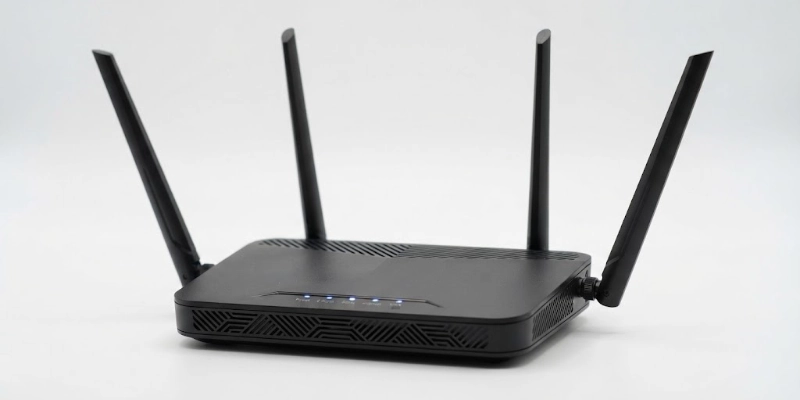
For example, when you open a website on your phone, the request travels through your wireless connection to the router. The router sends that request toward the internet and then delivers the returned information back to your phone.
A traditional wired router performs the same basic routing job but normally requires Ethernet cables to connect devices. A wireless router adds Wi-Fi, allowing compatible devices to connect without physical network cables.
You may also hear a wireless router called a Wi-Fi router because it uses Wi-Fi technology to create wireless connections.
A simple home network might look like this:
Internet → Modem/ISP Gateway → Wireless Router → Phone, Laptop, TV, Console
Some modern ISP devices combine the modem and router into one unit, so you may not always see separate devices.
How Does a Wireless Router Work?
A wireless router works behind the scenes to move information between your internet connection and your connected devices. Although the process sounds technical, the basic idea is fairly simple.
Here is how it usually works:
- Internet connection reaches the modem or gateway: Your ISP provides an internet connection through cable, fiber, DSL, or another technology.
- Router receives the connection: The modem or gateway passes the connection to the router’s WAN or Internet port.
- Router manages data: It examines incoming and outgoing network traffic and determines where it should go.
- Wi-Fi signal is broadcast: The router creates a wireless network that nearby compatible devices can detect.
- Devices connect wirelessly: Your phone, laptop, smart TV, or other device connects using the Wi-Fi name and password.
- Router sends data to the correct device: When information comes back from the internet, the router directs it to the device that requested it.
For example, imagine you are watching a video on your smart TV while someone else is browsing the internet on a laptop. Both devices use the same internet connection, but the router keeps track of their network traffic and sends the right data to each device.
What Does a Wireless Router Do?
A wireless router has several jobs in a home or small office network. Providing Wi-Fi is one of its most visible functions, but it also handles network management and security tasks.
- Internet
The router allows multiple devices to use one internet connection. Your family can use phones, computers, TVs, and other devices at the same time without needing a separate internet connection for each one.
This makes it practical for homes and offices where many devices need online access.
- Wi-Fi
A wireless router creates the Wi-Fi network that your devices connect to. You normally choose a network name, set a password, and then connect compatible devices to it.
The router’s wireless range depends on its hardware, frequency bands, placement, walls, and other environmental factors.
- Data
One of the router’s main jobs is directing network traffic. When several devices are using the network, it determines where information needs to go.
For example, data requested by your laptop should reach your laptop rather than your smart TV.
- Devices
A router can connect many devices to the same local network. These devices can include computers, smartphones, printers, smart speakers, cameras, televisions, and gaming consoles.
Some devices connect through Wi-Fi, while others can use Ethernet cables.
- Security
Many routers include security features that help protect the local network. These can include firewall functions, wireless encryption, guest networks, and other access controls.
Keeping the router’s firmware updated and using a strong Wi-Fi password are also important parts of network security.
- Traffic
A router helps manage traffic between connected devices and the internet. Depending on the model, it may also offer features such as DHCP, parental controls, quality-of-service settings, guest networking, and device management.
These features can be useful when a network has many users or connected devices.
Types of Wireless Routers
Wireless routers come in several forms, with differences in wireless bands, connectivity methods, and intended use. For most home users, understanding the basic types is enough to make an informed choice.
- Single-Band Router: A single-band router generally operates on the 2.4 GHz Wi-Fi band. This frequency can provide useful coverage and can work well for basic internet activities.
- Dual-Band Router: A dual-band router supports both 2.4 GHz and 5 GHz bands. This gives users more flexibility because devices can connect using the band that fits their needs.
- Tri-Band Router: A tri-band router provides three wireless bands. Depending on the router, these may include one 2.4 GHz band and two 5 GHz bands, or newer configurations that include 6 GHz.
- Mesh Router: A mesh system uses multiple nodes or units that work together to provide wireless coverage across a larger area. Instead of relying on one router to cover the entire home, additional units can help extend the network.
- 5G Router: A 5G router uses a cellular 5G network instead of a traditional wired broadband connection. It can provide internet access in places where cable, fiber, or other broadband options are limited or unavailable.
Wireless Router vs. Modem
A wireless router and a modem have different jobs, although they are sometimes built into the same physical device. Understanding this difference can make setting up a home network much easier.
| Feature | Wireless Router | Modem |
| Main job | Creates and manages a local network | Connects to the ISP |
| Wi-Fi | Usually yes | Usually no |
| Connects multiple devices | Yes | Limited/direct connection |
| Routes network traffic | Yes | No |
| Works with modem | Yes | Connects to router |
A modem mainly provides the connection between your home network and your ISP. The router then manages that connection and distributes network access to your devices.
Many ISPs provide a gateway, which combines modem and router functions in one device. In that case, you may not need two separate boxes.
Wireless Router vs. Wi-Fi
Wireless routers and Wi-Fi are related, but they are not the same thing. One is a device, while the other is a wireless networking technology.
A router is a networking device that directs traffic between networks and manages connections. Wi-Fi is the wireless technology that allows compatible devices to communicate over a local network without using Ethernet cables.
In simple terms:
- Router = networking device
- Wi-Fi = wireless networking technology
- Wireless router = a router that provides wireless connectivity using Wi-Fi
This is why saying “Wi-Fi and router are the same” is not technically correct.
Benefits of a Wireless Router
A wireless router makes it easier to build and manage a home or small office network. It provides both convenience and useful networking features without requiring cables for every device.
Some of the main benefits include:
- Wireless connectivity: Connect compatible devices without running Ethernet cables throughout the room.
- Multiple device connections: Share one internet connection with many devices.
- Easy home networking: Put computers, TVs, printers, and smart devices on the same local network.
- Device mobility: Move around your home while staying connected to Wi-Fi.
- Wired Ethernet connections: Connect devices such as desktop PCs, consoles, or smart TVs using Ethernet when needed.
- Network security: Use features such as encryption, firewall protection, and guest networks.
- Better network management: Manage connected devices and, depending on the router, control features such as access, traffic priority, and parental settings.
Key Features to Look For
If you are buying a wireless router, the right choice depends on how you use your network. A basic router may be enough for a small household, while a larger home with many connected devices may require more capable hardware.
Wi-Fi Standard
The Wi-Fi standard affects wireless performance, efficiency, and supported features. Modern routers may support Wi-Fi 6 or Wi-Fi 7, while older models may use earlier standards.
You do not always need the newest standard. However, choosing a modern router can provide better support for newer devices and demanding networks.
Speed
Router specifications often advertise very high maximum speeds, but real-world performance can be different. Your internet plan, connected devices, distance from the router, interference, and network conditions all affect actual speeds.
For this reason, choose a router that can comfortably handle your internet plan and typical activities rather than focusing only on the largest number on the box.
Coverage
Wireless coverage is affected by the router’s antennas and hardware, but the layout of your home also matters. Thick walls, floors, furniture, and other obstacles can weaken the signal.
A larger home may benefit from a more powerful router or a mesh system instead of relying on one device.
Frequency Bands
Wireless routers commonly use 2.4 GHz, 5 GHz, and sometimes 6 GHz bands.
The 2.4 GHz band generally travels farther and can work better through obstacles, while 5 GHz usually offers higher speeds at shorter distances. The 6 GHz band, available with compatible Wi-Fi generations and devices, can provide additional wireless capacity under suitable conditions.
Ethernet Ports
Ethernet ports let you connect devices with network cables. The WAN or Internet port normally connects the router to the modem or ISP equipment, while LAN ports are used for devices on your local network.
Ethernet can be useful for devices where a stable connection is important, such as desktop computers and gaming consoles.
Security
Look for modern security features such as WPA2 or WPA3, firewall functions, guest networking, and regular firmware updates.
A router with good security features can help protect your network, but safe settings and updated software are still important.
Device Capacity
Every household has a different number of connected devices. A home with a few phones and laptops has different requirements from one with smart TVs, cameras, speakers, computers, consoles, and other connected equipment.
If many devices regularly use the network at the same time, a more capable router can help manage the load.
How to Set Up a Wireless Router
Setting up a wireless router is usually straightforward. Most modern routers provide a mobile app or web-based setup interface that guides you through the main steps.
Follow this basic process:
- Connect the modem or ISP equipment: Make sure your internet connection is working.
- Connect the router: Plug an Ethernet cable into the router’s WAN or Internet port.
- Power on the equipment: Turn on the modem or gateway and router.
- Connect to the router: Use Wi-Fi or an Ethernet cable to connect a phone or computer.
- Open the setup app or web interface: Follow the manufacturer’s instructions.
- Create a Wi-Fi name and password: Choose a network name and a strong password.
- Choose security settings: Use the strongest suitable security option supported by your devices.
- Connect your devices: Join phones, laptops, TVs, consoles, and other equipment to the new network.
- Update the firmware: Check for available updates after setup.
The exact steps can vary between router brands and ISP equipment, so the manufacturer’s instructions should be followed when the interface differs.
Where Should You Place a Wireless Router?
Router placement can make a noticeable difference to wireless coverage. Even a capable router can perform poorly if it is placed in an enclosed or heavily obstructed location.
Try to keep it in a central location so the wireless signal can reach more areas of your home. An elevated position, such as a shelf, can also be better than placing it directly on the floor.
Keep the router in an open area and away from thick walls, large metal objects, and sources of wireless interference. Avoid hiding it inside a cabinet because surrounding materials can reduce signal quality.
If your home has several floors or areas where the signal is consistently weak, changing the router’s position may help. For larger coverage problems, a mesh system may be another option.
Common Wireless Router Problems
Even a properly configured network can sometimes experience connection problems. Many common issues can be solved with a few basic checks.
Wi-Fi
Slow wireless speeds can result from distance, interference, network congestion, an overloaded router, or limitations in the internet plan. Try moving closer to the router, restarting the equipment, or testing the connection through Ethernet.
If the wired connection is also slow, the issue may not be related to Wi-Fi.
Signal
A weak signal can occur when the device is far from the router or separated by thick walls and other obstacles. Moving the router to a more central and open location may improve coverage.
For larger homes, additional access points or a mesh system may be needed.
Internet
If your devices connect to Wi-Fi but cannot access the internet, check the modem or ISP equipment first. Restarting the modem and router can sometimes restore the connection.
If the problem continues, check whether your ISP is experiencing an outage or whether there is an issue with your service.
Connection
First, check that the Wi-Fi password is correct and that Wi-Fi is enabled on the device. Restarting the device and router can also help.
If only one device has a problem while everything else works normally, the issue may be specific to that device.
Disconnection
Frequent drops can be caused by interference, outdated firmware, weak signal strength, overheating, or problems with the internet connection.
Check for firmware updates and try using the device closer to the router. If multiple devices disconnect at the same time, check the router and ISP connection.
Wi-Fi Password
If you forget your Wi-Fi password, you may be able to view or change it through the router’s app or web interface. The exact method depends on the router model.
If you cannot access the router at all, a factory reset may be required, but this will erase your current settings and require you to configure the network again.
Do You Need a Wireless Router?
Most homes with multiple internet-connected devices can benefit from a wireless router. It provides a convenient way to share an internet connection and create a local network.
It can be useful for:
- Home users: Connect phones, computers, TVs, and other household devices.
- Students: Connect laptops, phones, tablets, and other study devices.
- Remote workers: Provide network access for computers, phones, printers, and work equipment.
- Gamers: Connect gaming consoles and PCs through Wi-Fi or Ethernet.
- Smart-home users: Connect cameras, speakers, smart plugs, lights, and other devices.
- Small offices: Share internet access and local network resources between employees.
However, the exact equipment you need depends on your ISP connection. Some providers supply a modem/router gateway, while others may provide separate equipment. Before buying a router, check what your ISP supports and whether its equipment can be replaced or used with your own router.
Conclusion
A wireless router is an important part of a modern home or office network. It connects your devices, creates a Wi-Fi network, directs data, and can provide useful security and management features.
The right router depends on your internet speed, home size, number of connected devices, wireless coverage needs, and the features you want. Understanding these basics can help you choose and use your network equipment with more confidence.
FAQs
Still have questions about wireless routers? Explore the answers above to better understand how they work and choose the right option for your home or office.
A wireless router connects multiple devices to an internet connection and creates a local network. It can also manage network traffic, provide Wi-Fi, and offer security features.
No. A wireless router is a networking device, while Wi-Fi is the wireless technology it uses to connect compatible devices.
You need equipment that connects your network to your ISP and a router that manages your local network. These functions may be provided by two separate devices or combined into one gateway.
A router can create a local network without a modem, but it generally needs an appropriate internet connection or gateway to provide normal internet access.
The exact number depends on the router model and network conditions. A router may support many devices, but performance can decrease when numerous devices use the network heavily at the same time.
There is no single range that applies to every router. Distance, walls, interference, router hardware, frequency band, and home layout all affect coverage.
They serve different needs. A wireless router offers the convenience of Wi-Fi while also supporting wired Ethernet connections, making it useful for many homes and small offices.
A router does not normally increase the internet speed provided by your ISP. However, upgrading an old or poorly performing router can improve the quality and reliability of connections within your home network.
Often, yes, but compatibility and setup requirements vary by ISP and connection type. Check your provider’s requirements before replacing its equipment.
There is no fixed replacement schedule. Consider replacing one when it no longer supports your devices or internet plan, has persistent performance problems, stops receiving important firmware updates, or lacks features you need.


- Be Respectful
- Stay Relevant
- Stay Positive
- True Feedback
- Encourage Discussion
- Avoid Spamming
- No Fake News
- Don't Copy-Paste
- No Personal Attacks
- Be Respectful
- Stay Relevant
- Stay Positive
- True Feedback
- Encourage Discussion
- Avoid Spamming
- No Fake News
- Don't Copy-Paste
- No Personal Attacks
