What is a USB Hub and How It Works Explained
Published: 13 May 2026
Have you ever tried to connect a mouse, keyboard, or flash drive to your computer and found no free port left? Many people face this problem every day. Modern laptops look slim and stylish, but they often come with fewer USB ports. This small issue can create a lot of frustration, especially when you need to connect several devices at the same time.
It gives you extra USB ports from a single connection. It helps you connect more devices without unplugging others again and again. Students, office workers, gamers, and content creators all use this simple tool to make their work easier and faster.
In this guide, you will learn what a USB hub is, how it works, its different types, key features, advantages, and how to choose the right one for your needs.
What is a USB Hub?
It is a small device that adds more USB ports to your computer or laptop. It connects to one USB port and lets you use several gadgets at the same time, such as a keyboard, mouse, printer, flash drive, or external hard drive.
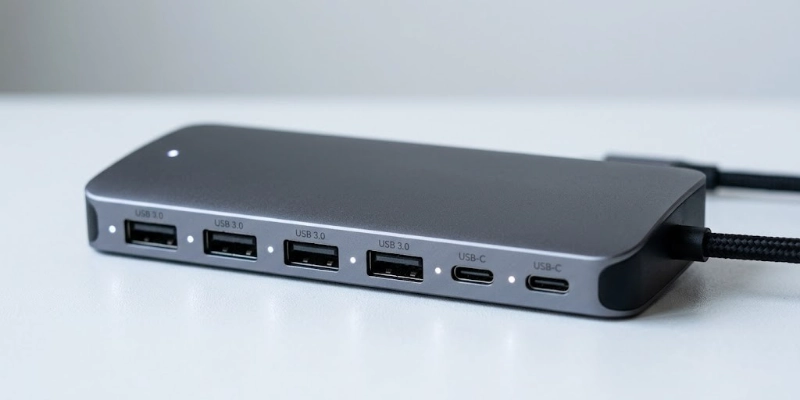
This device works like an extension for your computer. Instead of unplugging one device to connect another, you can keep multiple accessories connected in one place.
People often use it with laptops that have limited ports, desktop computers with many accessories, and gaming setups that need connections for controllers, headsets, RGB keyboards, and other devices.
How Does a USB Hub Work?
It works by taking one USB connection from your computer and turning it into multiple ports. It allows several devices to connect, transfer data, and receive power at the same time. Most hubs also offer quick plug-and-play setup, which makes them simple and convenient to use.
USB Port Expansion
It connects to one USB port on your computer and creates several extra ports. This allows you to connect multiple devices at the same time, such as a mouse, keyboard, USB drive, or printer. It helps users manage more accessories without needing extra built-in ports.
Data Transfer Process
The hub sends data between connected devices and the computer. For example, when you move files from a flash drive or use a keyboard, the hub passes that information to the system. The computer then recognizes each connected device and allows it to work normally.
Power Distribution
It also shares power with connected devices. Small accessories like a mouse or keyboard usually work with the computer’s power supply. Some larger devices, such as external hard drives, may need a powered hub with its own adapter for stable performance.
Plug-and-Play Functionality
Most USB hubs support plug-and-play use. You simply connect the hub to your computer and start using it. In most cases, no advanced setup or manual installation is required, which makes it easy for beginners and everyday users.
Types of USB Hubs
They come in different types for different devices and usage needs. Some focus on power delivery, while others offer extra features like video output, internet connection, or portable design.
Choosing the right type depends on how and where you plan to use it.
Powered USB Hubs
They use an external power adapter to support connected devices. They work well with high-power accessories like external hard drives, printers, and charging devices. These hubs provide stable performance when several devices stay connected at the same time.
Unpowered USB Hubs
They take power directly from the computer’s USB port. They are best for low-power devices such as a mouse, keyboard, or USB flash drive. Many people use them for simple everyday tasks because they are lightweight and easy to carry.
USB-C Hubs
USB-C hubs connect to laptops and devices that use USB-C ports. They often include extra connections like USB-A ports, HDMI, memory card slots, and charging support. These hubs have become popular with modern laptops that offer limited built-in ports.
Docking Stations
Docking stations are advanced hubs designed for professional and multitasking setups. They can support monitors, Ethernet cables, SD cards, speakers, and several USB devices at once. Many office users connect a docking station to create a complete desktop-style workspace from a laptop.
Portable USB Hubs
They feature a compact and travel-friendly design. They fit easily into bags or laptop sleeves, which makes them useful for students, travelers, and remote workers. Despite their small size, they still provide quick access to extra ports when needed.
USB Standards Explained
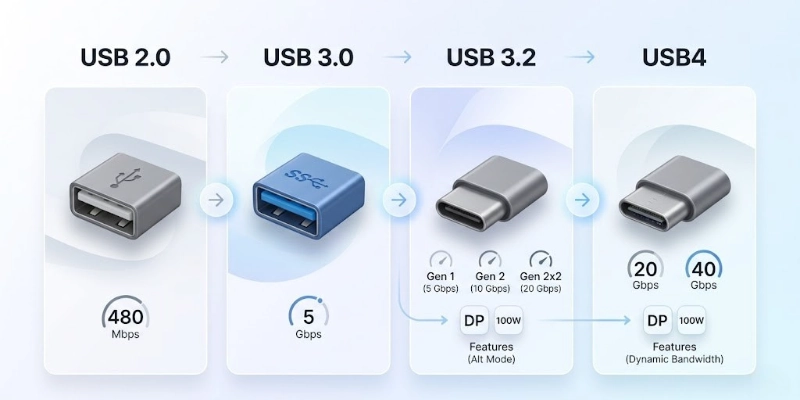
They support different USB standards, and each version offers different speed and performance levels. Understanding these standards helps you choose a hub that matches your devices and daily tasks.
USB 2.0
USB 2.0 is an older standard that supports basic data transfer and device connections. It works well for simple accessories like keyboards, mice, printers, and USB drives. Many devices still support this standard because of its wide compatibility.
USB 3.0 / 3.1 / 3.2
USB 3.0, 3.1, and 3.2 offer much faster data transfer speeds than USB 2.0. These standards help move large files quickly and improve performance for external hard drives, SSDs, and high-speed accessories. Many modern USB hubs now include these faster ports for better efficiency.
USB4 & Thunderbolt Compatibility
USB4 supports very high-speed connections and better overall performance for the latest gadgets. Some USB4 hubs also work with Thunderbolt technology, which allows fast data transfer, video output, and charging through a single connection. These hubs are common in advanced laptops, creative workstations, and professional setups.
Key Features of a USB Hub
They offer more than just extra ports. Many models include useful features that improve convenience, connectivity, and device management for everyday users.
- Multiple USB Ports
It allows you to connect several devices at the same time. You can use accessories like keyboards, mice, flash drives, printers, and external storage devices without constantly unplugging them.
- Fast Data Transfer
Many modern hubs support high-speed data transfer for quick file movement between devices. This feature helps save time when transferring large videos, photos, documents, or backups.
- Charging Support
They support device charging for smartphones, tablets, wireless earbuds, and other accessories. Certain powered hubs can even charge multiple devices at the same time.
- Compact Design
Many USB hubs come with a slim and lightweight design that fits easily on a desk or inside a travel bag. Portable options help users stay connected while working, studying, or traveling.
- Additional Connectivity
Advanced USB hubs may include extra ports such as HDMI, Ethernet, SD card readers, and audio connections. These added features help users connect monitors, internet cables, memory cards, and other accessories through one device.
Common Uses of USB Hubs
USB hubs help users connect and manage multiple devices more easily at home, in offices, and during travel.
- Connection: A USB hub allows users to connect a keyboard and mouse at the same time without using multiple built-in ports.
- Port Expansion: Many laptops have limited ports, so a USB hub adds extra connections for daily accessories and devices.
- Gaming Setup: Gamers use USB hubs to connect controllers, headsets, RGB keyboards, webcams, and other gaming accessories.
- File Transfers: USB hubs make it easier to transfer files between flash drives, external hard drives, and computers.
- Device Charging: Some USB hubs can charge phones, tablets, earbuds, and other small electronic devices together.
Benefits and Limitations of USB Hubs
USB hubs make device connections easier and help users manage multiple accessories from one place. However, some hubs may also have limits in speed, power, or compatibility depending on their quality and type.
| Benefits | Limitations |
| Adds more USB ports | Some devices may get low power |
| Keeps desks more organized | Cheap hubs may slow data speed |
| Useful for laptops with few ports | Some devices may not connect properly |
| Easy to carry during travel | Too many devices can overload the hub |
| Supports charging and file transfer | Performance depends on hub quality |
How to Choose the Best USB Hub?
Choosing the right USB hub depends on your devices, daily tasks, and portability needs. A good hub should offer the right number of ports, fast performance, and reliable build quality for long-term use.
- Number of Ports: Choose a hub with enough ports for your keyboard, mouse, USB drive, charger, and other devices.
- USB Version Support: Check if the hub supports USB 3.0, 3.1, or USB4 for faster data transfer and better performance.
- Powered or Unpowered: Pick a powered hub for external hard drives and high-power devices. An unpowered hub works well for basic accessories.
- Portability and Design: A compact and lightweight hub is better for travel, while larger hubs suit desk setups and office use.
- Budget and Brand Quality: Buy from trusted brands with good reviews to get better speed, durability, and device compatibility.
USB Hub vs Docking Station
Both devices help expand connectivity, but they offer different features and performance levels. A USB hub mainly adds extra USB ports, while a docking station provides advanced connections for professional and multitasking setups.
| Feature | USB Hub | Docking Station |
| Main Purpose | Adds extra USB ports | Creates a full workstation setup |
| Port Options | Mostly USB ports | USB, HDMI, Ethernet, SD card, audio |
| Device Support | Basic accessories | Multiple devices and monitors |
| Power Support | Limited on some models | Better power and charging support |
| Best For | Daily use and travel | Office work and professional setups |
| Size | Small and portable | Larger and less portable |
| Price | More affordable | Usually more expensive |
Which Option Is Better?
The right choice depends on your daily work, device setup, and connectivity needs.
- A USB hub works best for students, casual users, travelers, and people who only need extra USB ports.
- A docking station suits office workers, gamers, designers, and professionals who use multiple screens and accessories together.
Popular USB Hub Brands
Several tech brands offer reliable USB hubs for daily use, office work, gaming, and travel. These brands are known for good build quality, fast performance, and wide device compatibility.
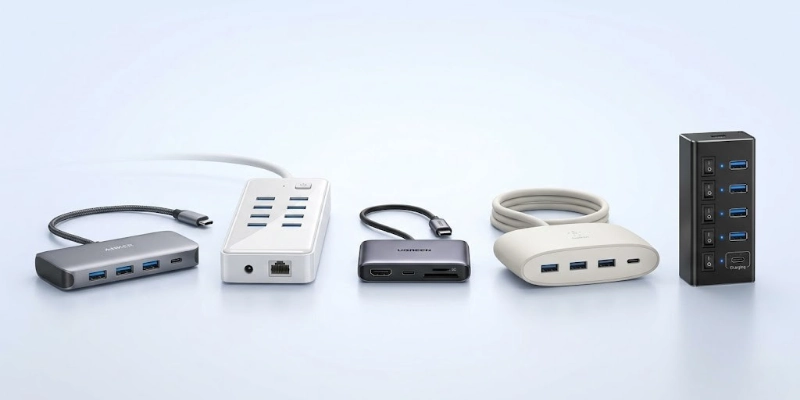
Here are some given below.
- Anker: Popular for durable USB hubs with fast charging and modern USB-C support.
- TP-Link: Offers affordable USB hubs and docking solutions for home and office users.
- UGREEN: Known for compact designs, reliable connectivity, and multiple port options.
- Belkin: Provides premium USB hubs with strong compatibility for laptops and mobile devices.
- Sabrent: Offers budget-friendly USB hubs for basic connectivity and file transfer needs.
Safety Tips for Using USB Hubs
Using a USB hub correctly can improve device performance and help prevent connection or power issues.
- Overloading: Do not connect too many high-power devices to one hub at the same time.
- Trusted Brands: Reliable brands usually offer better safety, performance, and device protection.
- Ventilation: Place the hub in an open area to reduce heat during long use.
- Unused Devices: Remove devices that are not in use to save power and reduce unnecessary load.
Conclusion
A USB hub is a simple and useful device that expands one USB port into multiple connections. It helps you connect different devices like keyboards, mice, and storage drives at the same time, making everyday computer use easier and more organized.
In modern devices where ports are often limited, a USB hub becomes very helpful for smooth multitasking. Basic users can choose a simple hub for daily needs, while professionals or heavy users may prefer a powered hub or docking station for better performance and extra features.
FAQs
Have more questions? Check our FAQs below to get quick and clear answers about USB hubs.
A USB hub is used to connect multiple devices to one USB port. It helps you use accessories like keyboards, mice, and flash drives at the same time. It makes your device more useful when ports are limited.
A USB hub can reduce speed if many devices share the same connection. High-quality USB 3.0 or USB4 hubs keep a better speed for normal use. Good hubs give stable and smooth performance.
Some USB hubs can charge phones, tablets, and other small devices. Powered hubs provide faster and more stable charging. Always check charging support before buying.
Powered USB hubs work better for high-power devices and heavy use. They use an external power source for stable performance. They are best for multiple devices running at the same time.
You can connect one hub to another, but it may reduce speed and performance. It can also create power issues for connected devices. Using a single good-quality hub is a better choice.
You can connect keyboards, mice, USB drives, printers, and external storage. Some hubs also support cameras and gaming controllers. The supported devices depend on the hub type.
Most USB hubs work with laptops that have USB-A or USB-C ports. Compatibility depends on the port type and USB version. Always match the hub with your laptop port.
A USB hub is safe when you use a trusted and good-quality product. Avoid connecting too many high-power devices at once. Quality hubs provide stable and safe performance.
USB 2.0 hubs offer basic speed and simple use. USB 3.0 hubs provide much faster data transfer and better performance. USB 3.0 is better for modern devices and large files.






- Be Respectful
- Stay Relevant
- Stay Positive
- True Feedback
- Encourage Discussion
- Avoid Spamming
- No Fake News
- Don't Copy-Paste
- No Personal Attacks
- Be Respectful
- Stay Relevant
- Stay Positive
- True Feedback
- Encourage Discussion
- Avoid Spamming
- No Fake News
- Don't Copy-Paste
- No Personal Attacks
