What Is a USB Cable: Types, Uses, Speed & More
Published: 26 Oct 2026
A USB cable is a cable used to connect electronic devices for charging, data transfer, or both. You can find USB cables for smartphones, computers, cameras, printers, external drives, keyboards, and many other gadgets.
If you have ever connected your phone to a laptop, charged a device with a USB connection, or moved photos from a camera to a computer, you have probably used one. But what is a USB cable exactly, and why are there so many different types?
USB cables come with different connector shapes and USB standards. These differences can affect charging power, data-transfer speed, and even whether a cable can carry video signals.
Table of Contents
What Is a USB Cable?
USB stands for Universal Serial Bus. A USB cable is a cable that allows compatible electronic devices to communicate with each other and, in many cases, transfer electrical power.
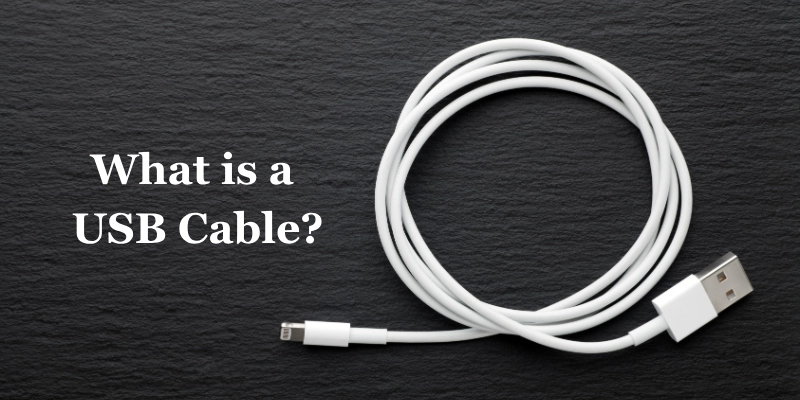
A USB connection usually involves two devices. For example, you can connect a smartphone to a laptop using a USB cable. The laptop can communicate with the phone, while the cable may also provide power to charge the phone.
Depending on the cable, devices, ports, and USB standard being used, a USB cable can carry:
- Electrical power
- Digital data
- Both power and data
- Video signals on supported connections
USB was designed to make connecting computer peripherals easier and more standardized. Today, it is used far beyond traditional computers.
How Does a USB Cable Work?
A USB cable creates a physical connection between two compatible devices. Once connected, the devices can communicate through the USB interface according to the capabilities supported by the hardware and cable.
For example, when you connect a phone to a computer, the computer may detect the phone and allow you to access files. At the same time, the phone may receive power from the computer’s USB port.
In a simple USB connection, one device acts as the host, while another device connects to it. A computer is commonly the host when you connect a keyboard, mouse, phone, or external drive.
USB is widely used because it provides a convenient way to handle both device communication and power through a standardized connection.
Types of USB Cables
USB cables come in different connector shapes. It is important to understand that connector type and USB version are not the same thing.
The connector describes the physical shape that plugs into a device. The USB version describes the technology and capabilities behind the connection. This means two cables with the same connector can offer different data speeds or power capabilities.
- USB Type-A
USB Type-A is the familiar rectangular connector found on computers, chargers, keyboards, mice, printers, and other accessories. It is not reversible, so it must be inserted in the correct direction. Its speed and capabilities depend on the USB standard supported by the cable and port.
- USB Type-B
USB Type-B is a larger, square-shaped connector commonly found on printers, scanners, and older computer equipment. It connects these devices to computers for data transfer. USB-B is less common today but is still used on some older and specialized devices.
- Mini USB
Mini USB was commonly used in older cameras, MP3 players, GPS devices, and other electronics. It is larger than Micro USB and has become uncommon as smaller connectors became popular. You may still find Mini USB on some older equipment.
- Micro USB
Micro USB was widely used in older smartphones, cameras, power banks, speakers, and other small devices. It is compact but not reversible, so it must be inserted in the correct direction. USB-C has largely replaced Micro USB on newer devices because it is reversible and supports broader capabilities.
- USB Type-C
USB-C is a small, reversible connector that is easy to plug in either way. It is common on newer phones, tablets, laptops, monitors, and accessories. USB-C can support charging, data transfer, and video output, but its capabilities depend on the cable, device, and USB standard.
USB Cable Types by Speed
The connector shape does not automatically tell you how fast a USB cable can transfer data. A USB-C cable, for example, may support basic USB 2.0 speeds or much faster USB standards.
This is why checking the cable’s specifications is more useful than judging it only by its connector.
- USB 2.0: USB 2.0 is an older, widely supported standard with a maximum theoretical speed of 480 Mbps. It works well for everyday devices like keyboards, mice, and basic accessories. It can also support charging, but charging speed depends on the cable, charger, and device.
- USB 3.x: USB 3.x offers faster data transfer than USB 2.0, making it useful for large files, external drives, and cameras. Since USB 3.x naming can be confusing, check the actual speed specification instead of relying only on the “USB 3” label.
- USB4: USB4 is a modern USB standard for high-speed connections. It uses USB-C and can support fast data transfer, display, and power features when supported by the cable and devices.
What Are USB Cables Used For?
USB cables are used with a wide range of electronic devices. Their exact function depends on the devices and the USB capabilities they support.
Common uses include:
- Charging smartphones and tablets
- Transferring photos and files
- Connecting keyboards and mice
- Connecting printers and scanners
- Connecting external storage drives
- Connecting digital cameras
- Connecting gaming accessories
- Connecting monitors and docks
- Supplying power to compatible devices
This flexibility is one reason USB has become such a common connection standard.
USB Cable for Charging
USB cables are commonly used to deliver power from a charger, computer, or another power source to a compatible device. For example, you can use one to charge a smartphone, tablet, wireless earbuds, or other portable gadget.
However, not every USB cable charges at the same speed. Charging performance depends on several parts of the connection, including the device, power adapter, charging protocol, and cable.
It is also important to understand that a USB cable and charger are not the same thing. The cable carries power between the source and device, while the charger or power adapter provides the electrical power.
For faster charging, all the important parts need to support the required power level. A powerful charger cannot necessarily make an unsuitable cable or device charge at that same rate.
USB Cable for Data Transfer
USB cables can also transfer information between compatible devices. For example, you can use a USB connection to move photos from a smartphone or camera to a computer.
The same principle applies to external storage. A USB cable can connect an external SSD or hard drive to a computer so you can read, write, or move files.
Data-transfer speed matters when working with large files. A faster connection can reduce the time needed to copy videos, photographs, backups, and other large files.
Remember that two USB-C cables may look almost identical while supporting different data speeds. Always check the specifications when fast file transfer is important.
USB Cable vs USB Port
A USB cable and a USB port are related, but they are not the same thing. The cable is the physical connection between devices, while the port is the socket on a device where the connector is inserted.
For example, suppose you connect your smartphone to a laptop. You plug one end of the cable into the phone’s USB port and the other end into a USB port on the laptop.
The cable creates the connection, while the ports provide the places where the devices connect. Both sides need to be compatible for the connection to work properly.
USB-A vs USB-C
USB-A and USB-C are two of the most recognizable USB connector types. They can both be used for USB connections, but their physical designs and common applications are different.
| Feature | USB-A | USB-C |
| Shape | Rectangular | Small, rounded |
| Reversible | No | Yes |
| Common devices | PCs, chargers, older peripherals | Phones, tablets, laptops |
| Data speeds | Depends on USB version | Depends on USB version |
| Charging | Depends on implementation | Can support higher power |
| Modern use | Still common | Increasingly common |
The important thing to remember is that USB-C does not automatically mean faster. Its capabilities depend on the USB specification, cable, port, and connected devices.
How to Choose the Right USB Cable
Choosing a USB cable is easier when you know what your device actually needs. A cable may physically fit a port but still fail to provide the speed, charging power, or display support you expect.
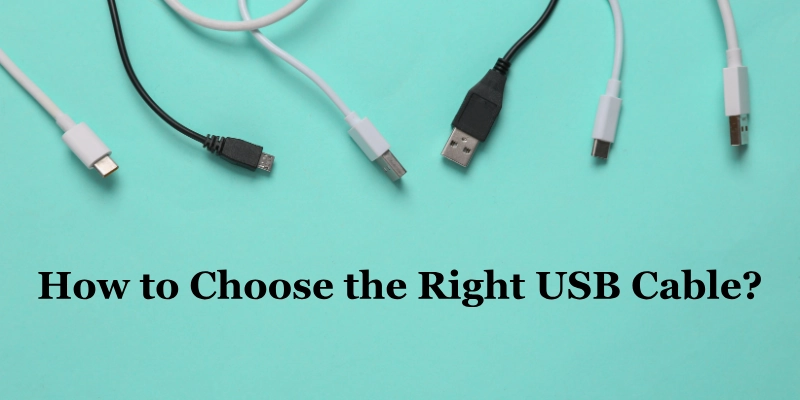
Before buying one, check these points:
- Connector type: Make sure both ends match the ports on your devices.
- Device compatibility: Confirm that the cable works with your specific devices.
- Data-transfer speed: Choose a suitable speed if you regularly move large files.
- Charging power: Check whether the cable can handle the power required by your device.
- Cable length: Pick a length that is convenient without creating unnecessary clutter.
- Build quality: A well-made cable can be more reliable for regular use.
- Video support: Check this if you want to connect a compatible monitor or display.
- USB specification: Look at the actual USB standard instead of judging the cable by its connector alone.
A cable fitting into a port does not necessarily mean it supports the maximum charging, data, or display capabilities of that device.
Advantages of USB Cables
USB cables have become popular because they are useful for many different types of electronics. They can simplify everyday connections and reduce the need for separate connection standards.
Some key advantages include:
- Easy to use
- Widely compatible
- Supports power and data
- Available in different connector types
- Works with many kinds of devices
- Modern versions can offer high-speed data and power capabilities
Another advantage is their wide availability. You can find USB cables for computers, phones, cameras, storage devices, printers, gaming accessories, and many other products.
Limitations of USB Cables
Although USB is highly useful, it does have some limitations. The biggest source of confusion is that cables can look similar while offering very different capabilities.
Common limitations include:
- Different connectors can create compatibility problems.
- Similar-looking cables may support different speeds or power levels.
- Older USB connectors are becoming less common.
- Poor-quality or damaged cables can affect performance.
- Not every USB-C cable supports the same speed, charging power, or display features.
Because of these differences, it is better to check the cable specifications instead of assuming that every USB cable works in exactly the same way.
USB Cable vs Other Cables
USB is only one type of cable used with modern electronics. Other cables are designed for different purposes, although some technologies can overlap in the features they support.
| Cable | Common Purpose |
| USB | Data, charging, device connections |
| HDMI | Video and audio |
| Ethernet | Wired networking |
| DisplayPort | Video and audio |
| Lightning | Apple devices using that connector |
For example, HDMI is mainly associated with audio and video connections, while Ethernet is designed for wired network communication. USB is more general and is commonly used for device connections, power, and data.
Common USB Cable Problems
USB cables can sometimes stop working correctly or perform more slowly than expected. Fortunately, many common problems can be checked with a few simple steps.
Cable Not Charging
If your device is not charging, start with the simplest possibilities. The problem may be the cable, charger, device port, or power source rather than the device itself.
Try the following:
- Check that both ends are connected properly.
- Try another charger or power source.
- Check the device’s USB port for dirt or damage.
- Test the cable with another compatible device.
If another cable works normally, the original cable may be damaged or unsuitable for the device.
Slow Charging
Slow charging can happen when the charger or cable does not support the power level required by the device. The device itself may also have charging limitations.
Check the charger’s power output and the cable’s capabilities. Also make sure the device supports the charging technology being used.
Slow Data Transfer
If files are taking too long to transfer, the connection may be limited by the USB standard or cable.
Check whether the cable supports the required data speed and whether both connected devices support that speed. A fast computer port cannot make a slower cable perform beyond its own capabilities.
Cable Not Recognized
Sometimes a computer or other device does not detect the connected hardware. Start by checking both connections and making sure the cable is properly inserted.
You can also try another USB port or another compatible cable. If the new connection works, the original cable or port may be the source of the problem.
How to Identify a USB Cable
Identifying a USB cable starts with looking at its connector, but the physical shape is only part of the answer. Two cables can use the same connector while supporting different USB standards.
Look at the following details:
- Connector shape and size
- Markings printed on the cable
- The port on your device
- Information on the packaging
- Manufacturer specifications
- Supported charging and data speeds
Do not identify a cable only by its color or appearance. The specifications provide much more useful information about what the cable can actually do.
Conclusion
A USB cable is a simple but important part of modern electronics. It can connect devices for charging, data transfer, or both, making it useful for everything from smartphones and laptops to cameras, storage drives, and accessories.
When choosing a USB cable, do not focus only on the connector shape. Check the connector type, USB version, data speed, and power capability to make sure the cable matches your needs.
FAQs
Still confused about USB cables? Check your device’s port and requirements, then choose the right USB cable for charging and data transfer.
A USB cable is commonly used to connect electronic devices for charging, data transfer, or both. Its exact capabilities depend on the cable, ports, and USB standards involved.
USB stands for Universal Serial Bus. It is a standard used to connect and communicate between many types of electronic devices.
Yes. Many USB cables can deliver power to compatible devices. However, charging speed depends on the cable, charger, device, and supported charging technology.
Yes. Compatible USB cables can transfer files such as photos, videos, documents, and other data between supported devices.
USB-A is a larger rectangular connector that is not reversible, while USB-C is smaller and reversible. Their actual speed and power capabilities depend on the USB implementation.
No. USB-C only describes the connector shape. USB-C cables can support different data speeds, charging capabilities, and other features.
The right cable depends on the charging requirements of your device and charger. Check the cable’s supported power level and make sure it is compatible with the charging system you use.
Yes. A suitable USB connection can transfer photos and videos between devices such as smartphones, cameras, computers, and storage drives.
Check the connector required by your device, then look at the required data speed, charging power, length, and other features. The device manufacturer’s specifications can help you confirm the correct cable.
Cable length can affect performance in some situations, especially with longer cables and demanding high-speed or high-power connections. For a specific setup, check the manufacturer’s recommended cable specifications.



- Be Respectful
- Stay Relevant
- Stay Positive
- True Feedback
- Encourage Discussion
- Avoid Spamming
- No Fake News
- Don't Copy-Paste
- No Personal Attacks
- Be Respectful
- Stay Relevant
- Stay Positive
- True Feedback
- Encourage Discussion
- Avoid Spamming
- No Fake News
- Don't Copy-Paste
- No Personal Attacks
