What is an SSD – Types, Features, Benefits & Buying Guide
Published: 16 Jul 2026
Have you ever wondered “what is an SSD?” and why many people choose it for their computers? The right storage can make your computer start faster and open files more quickly.
A solid-state drive stores your files, photos, videos, and apps safely. It also helps your computer work faster and more smoothly.
In this guide, you will learn how this storage device works, its main benefits, the different types, and how to choose the right one for your needs.
What is an SSD?
A Solid-State Drive is a storage device that saves your operating system, files, photos, videos, documents, games, and apps. Every time you save or open a file, your computer uses this storage device to read or write data.
A solid-state drive stores data on flash memory chips instead of using spinning disks or other moving parts. This modern design helps it work much faster and more efficiently.
Here are the main features of a solid-state drive:
- Fast performance: It starts your computer quickly and opens files in less time.
- No moving parts: It works without spinning disks, which makes it quieter and more durable.
- Low power use: It uses less electricity, which helps improve laptop battery life.
- Better reliability: It handles small bumps and movement better than older storage devices.
Many people choose this type of storage because it gives a smoother experience for everyday tasks such as browsing the internet, studying, working, editing files, and playing games.
How Does an SSD Work?
A solid-state drive stores and manages data with electronic parts instead of moving pieces. Different components work together to save, find, and protect your files. Here is how each part works.
NAND Flash Memory
NAND flash memory is the main storage area inside a solid-state drive. It stores your files, photos, videos, apps, and operating system. Instead of using spinning disks, it stores data in memory cells that keep information even after you turn off your computer. This design helps you access your files quickly whenever you need them.
SSD Controller
The solid-state drive controller is the brain of the drive. It manages how data moves between your computer and the flash memory. It reads data when you open a file, writes data when you save it, organizes information for quick access, and checks for errors. This helps the drive deliver fast and reliable performance.
Data Storage Process
When you save a file, the controller sends the data to the flash memory, where it stays safely stored. When you open the file again, the controller quickly finds the data and sends it back to your computer. This process happens in a very short time, allowing files and programs to open faster.
TRIM Command
The TRIM command helps the drive stay fast over time. When you delete a file, your operating system tells the drive which data blocks are no longer needed. The drive clears those blocks before storing new data, which improves performance and helps extend the drive’s lifespan.
Wear Leveling
Wear leveling spreads new data across all memory cells instead of writing to the same area repeatedly. This process reduces uneven wear, keeps performance stable, and helps the drive last longer.
Types of SSDs
Different types of solid-state drives offer different speeds, sizes, and uses. Some work well for everyday tasks, while others provide high performance for gaming, professional work, or business systems.
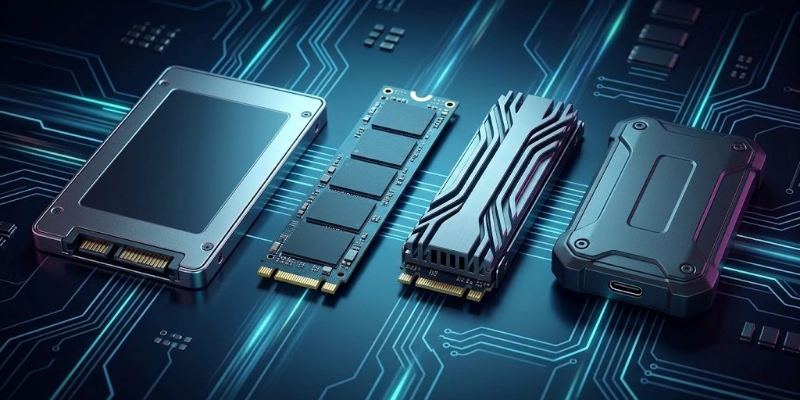
Some types are given below.
- SATA SSD
A SATA solid-state drive is the most common choice for upgrading an older computer. It uses the SATA interface, which is available in many desktops and laptops. It offers much faster performance than a traditional hard drive and is easy to install.
- M.2 SSD
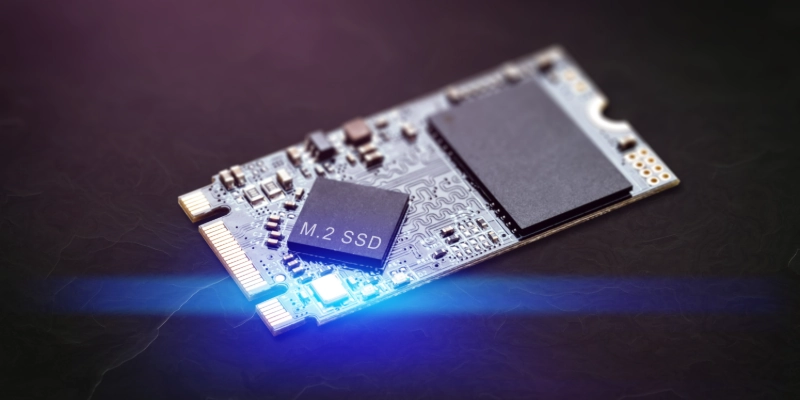
An M.2 solid-state drive is small and slim, making it a great choice for modern laptops and desktop computers. Its compact design saves space inside the device while providing reliable storage. Some M.2 drives use the SATA interface, while others use NVMe for higher speeds.
- NVMe SSD
An NVMe solid-state drive delivers very high read and write speeds by using the PCIe interface. It loads the operating system, games, and large files much faster than SATA models. Many gamers, content creators, and professionals choose this type for better performance.
- PCIe SSD
A PCIe solid-state drive connects directly to the motherboard through a PCIe slot. It provides excellent speed and handles heavy workloads with ease. Many workstations, servers, and high-performance computers use this type for demanding tasks.
- External SSD
An external solid-state drive is a portable storage device that connects through a USB or Thunderbolt cable. You can carry it anywhere and use it to store, transfer, or back up files. It offers fast performance and works with many computers and other compatible gadgets.
- U.2 SSD
A U.2 solid-state drive is designed mainly for enterprise systems and data centers. It delivers high speed, large storage capacity, and reliable performance for servers that run demanding applications all day.
SSD Form Factors Explained
A form factor is the physical size and shape of a storage device. It helps you know whether the drive will fit inside your laptop or desktop. Before buying one, always check which form factor your computer supports.
- 2.5-inch SSD
A 2.5-inch solid-state drive is the most common form factor for older laptops and desktop computers. It offers an easy upgrade and improves overall system performance.
- M.2 SSD
An M.2 solid-state drive has a slim design that connects directly to the motherboard. It fits modern laptops and desktops while saving space inside the system.
- mSATA SSD
An mSATA solid-state drive is a compact form factor found in some older laptops and small computers. It is less common today but still works with devices that support it.
- PCIe Expansion Card SSD
A PCIe Expansion Card solid-state drive fits into a PCIe slot on the motherboard. It provides very high speed for demanding tasks and professional workloads.
Key Features of an SSD
A solid-state drive offers many useful features that improve your computer’s speed, reliability, and overall performance. It helps your system run smoothly during everyday tasks like browsing, studying, gaming, and working. It also provides better durability and uses less power than older storage devices. Here are the main features you should know.
- Speed:
A solid-state drive reads and writes data much faster than older storage devices. This helps your computer start quickly and open files in less time.
- Moving Parts:
A solid-state drive works without spinning disks or moving components. This design makes it more reliable and reduces the chance of physical damage.
- Power Consumption:
A solid-state drive uses less power while running. This helps laptops achieve better battery life and improves energy efficiency.
- Operation:
A solid-state drive works quietly because it has no moving parts. You can use your computer without hearing storage noise.
- Resistance:
A solid-state drive handles small drops, shocks, and vibrations better than traditional storage devices. This makes it a good choice for laptops and portable devices.
- Design:
A solid-state drive comes in small and lightweight designs that fit many computers. Its compact size also helps manufacturers build thinner laptops.
- Lifespan:
A solid-state drive is designed to provide reliable performance for many years with normal use. Features like wear leveling help increase its lifespan.
Benefits and Limitations of an SSD
Every storage device has both advantages and disadvantages, and a solid-state drive is no different. It offers excellent speed, reliability, and efficiency, but it also has a few limitations that you should know before buying one. The table below gives a simple comparison of its main benefits and limitations.
| Benefits | Limitations |
| Faster boot time | Higher cost per GB |
| Quick app loading | Limited write cycles |
| Better gaming speed | Lower capacity at low prices |
| Smooth multitasking | Harder data recovery |
| Stronger durability | Large models cost more |
| Lower power use | Speed may drop when almost full |
| Silent operation | Needs a compatible slot in some PCs |
Common Uses of SSDs
People use solid-state drives in many devices because they provide fast performance and reliable storage.
Here are some of the most common uses.
- Gaming PCs
Gamers use solid-state drives to reduce loading times and enjoy smoother gameplay. They also help games and updates install faster.
- Laptops
Many laptops use solid-state drives because they are fast, lightweight, and energy efficient. They also help improve battery life and overall performance.
- Desktop Computers
Desktop users choose solid-state drives to make their systems start faster and run applications more smoothly. They are suitable for both home and office use.
- Video Editing
Video editors use solid-state drives to work with large files more efficiently. Fast storage helps speed up editing and file transfers.
- Graphic Design
Graphic designers use solid-state drives to open design software and large project files quickly. This helps improve workflow and productivity.
- Business Workstations
Businesses use solid-state drives for faster performance during daily tasks. They help employees work more efficiently with large documents and software.
- Servers
Many servers use SSDs to handle large amounts of data and user requests. Fast storage improves response times and overall system performance.
- External Backups
Portable SSDs provide a fast and reliable way to back up important files. They are easy to carry and protect data while traveling.
SSD vs HDD
An SSD and an HDD both store your files, apps, and operating system, but they work differently. The comparison below shows the main differences in a simple format.
| SSD | HDD |
| Fast performance | Slower performance |
| Quick boot and load times | Longer boot and load times |
| More durable | Less durable |
| Silent operation | Makes noise while running |
| Uses less power | Uses more power |
| Lower capacity at the same price | Higher capacity at the same price |
| Higher cost per GB | Lower cost per GB |
Which One Should You Choose?
Choose an SSD if you want speed, better performance, and greater reliability. Choose an HDD if you need more storage at a lower cost.
How to Choose the Best SSD?
Choosing the right SSD depends on your needs, budget, and computer. Consider the following factors before you buy one.
- Storage Capacity
Choose a storage size based on how you use your computer. Common options include 250GB, 500GB, 1TB, and 2TB or more.
- SSD Interface
Check which interface your computer supports. SATA is a good choice for basic use, while NVMe offers much faster performance.
- Form Factor
Select a form factor that fits your device. The most common options are 2.5-inch, M.2, and PCIe.
- Read and Write Speeds
Higher read and write speeds help your computer boot faster and open files more quickly. They also improve performance when moving large files.
- Endurance Rating (TBW)
The TBW (Terabytes Written) rating shows how much data you can write to the drive over its lifetime. A higher TBW usually means better long-term durability.
- DRAM Cache
An SSD with a DRAM cache can load files faster and handle heavy tasks more smoothly. It also helps maintain stable performance during large file transfers.
- Warranty
Choose a drive with a good warranty for added peace of mind. Many quality SSDs include a warranty of 3 to 5 years.
- Budget
Set a budget before you buy and compare different models. Choose the best balance of price, speed, and storage for your needs.
Popular SSD Brands
Many trusted brands make high-quality SSDs for home, office, gaming, and professional use.
Here are some of the most popular options.
- Samsung: Known for fast speed, excellent reliability, and premium quality.
- Crucial: Offers good performance at an affordable price.
- Kingston: It provides reliable storage for everyday users and businesses.
- WD (Western Digital): It makes SSDs for general use, gaming, and professional work.
- Seagate: It offers dependable storage with a range of capacity options.
- SanDisk: Popular for portable and internal storage solutions.
- Corsair: Produces high-performance drives for gamers and content creators.
- ADATA: Delivers good performance and value for different budgets.
How to Install an SSD?
Installing an SSD is simple if you follow the correct steps. The process depends on the type of drive and whether you want to keep your existing data.
- Installing a SATA SSD
Turn off your computer and disconnect the power cable. Place the SATA SSD in the drive bay, connect the SATA data and power cables, and then close the case.
- Installing an M.2 SSD
Turn off your computer and locate the M.2 slot on the motherboard. Insert the drive at a slight angle, press it down, and secure it with the mounting screw.
- Cloning Your Existing Drive
If you want to keep your files and operating system, clone your old drive to the new SSD. After cloning, set the new drive as the primary boot device in the BIOS.
- Reinstalling Windows
If you prefer a fresh start, install Windows on the new SSD using a bootable USB drive. Then install your drivers and apps, and restore your personal files.
Tips for Maintaining an SSD
A few simple habits can help your SSD stay fast and reliable for a long time. Follow these tips to maintain its performance.
- Enable TRIM
Turn on the TRIM feature if your operating system supports it. It helps the drive manage storage more efficiently and maintain good performance.
- Storage Space
Leave some free space on the drive instead of filling it completely. This helps the SSD run smoothly and write data more efficiently.
- Firmware
Check for firmware updates from the drive manufacturer. Updates can improve performance, stability, and security.
- Unnecessary Writes
Do not copy, move, or rewrite large files unless needed. Fewer write operations can help extend the drive’s lifespan.
- SMART Monitoring Tools
Use SMART monitoring software to check the health and performance of your drive. This helps you detect possible issues early.
- Back Up Important Files
Create regular backups of your important files on another drive or cloud storage. This protects your data if the drive ever fails.
Common SSD Problems and Solutions
Although SSDs are reliable, you may still face some problems over time. Most issues have simple solutions that you can try before replacing the drive.
| Problem | Solution |
| SSD not detected | Check the power and data connections, confirm the drive is enabled in BIOS, and update storage drivers. |
| Slow SSD performance | Free up storage space, enable TRIM, and update the drive firmware. |
| SSD overheating | Improve airflow inside the computer or install a heatsink if your drive supports one. |
| Firmware issues | Install the latest firmware from the manufacturer’s website to improve stability and performance. |
| Drive failure signs | Back up your files immediately and replace the drive if it shows frequent errors or stops responding. |
Future Trends in SSD Technology
SSD technology continues to improve every year. New developments focus on higher speed, larger storage, and better efficiency for both personal and business use.
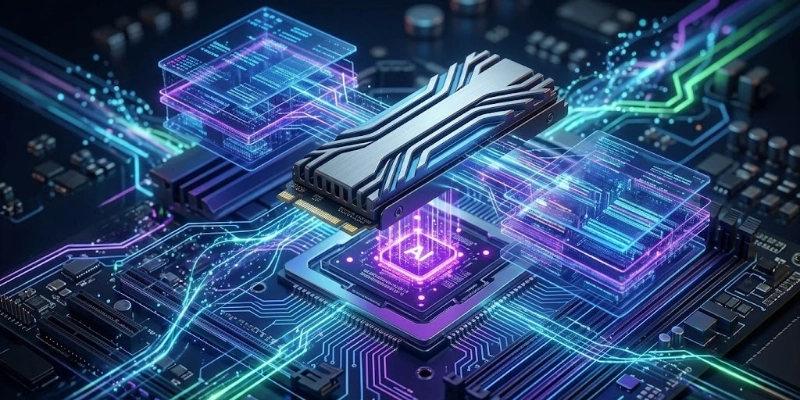
Some trends are given below.
- PCIe Gen5 SSDs:
PCIe Gen5 SSDs offer much higher data transfer speeds than previous generations. They help reduce loading times and improve performance for demanding tasks. - NVMe Standards:
New NVMe standards continue to increase storage performance. They allow computers to access files and applications even more quickly. - Storage Capacities:
Manufacturers continue to release drives with larger capacities. This gives users more space for games, videos, software, and other large files. - AI-Powered Storage Optimization:
AI technology can help manage data more efficiently by improving storage performance and reducing unnecessary operations. It may also help predict problems before they affect the drive. - NAND Technologies:
New NAND flash memory technologies provide better speed, durability, and power efficiency. These improvements help future SSDs become faster, more reliable, and longer-lasting.
Conclusion
An SSD offers faster performance, better reliability, and lower power use than older storage devices. It is a great choice for improving the speed and overall performance of your computer.
Beginners can choose a 500GB SATA model for everyday use, while gamers and professionals may prefer a 1TB or larger NVMe drive for better speed and more storage.
FAQs
Still have questions? Check the answers below to learn more about SSDs and clear up any doubts.
It stores your operating system, apps, games, and personal files. It also helps your computer open programs and files faster. Many people use it to improve their everyday performance.
Yes, for most users. It offers faster speed, quieter operation, and better durability. An HDD is a better choice if you need more storage for less money.
A good-quality drive can last for many years. Normal daily use does not wear it out quickly. Regular backups help keep your data safe.
Yes, most computers support this upgrade. You can move your existing data or install a fresh operating system. Check your computer’s compatibility before buying.
It makes games load much faster. It also reduces waiting time during updates and level loading. However, it does not usually increase FPS.
Yes, it is one of the best computer upgrades. It improves speed without changing other hardware. Most users notice the difference immediately.
A 500GB drive is enough for most users. Choose 1 TB or more if you install many games or large files. Pick a size that matches your storage needs.
Yes, like any storage device, it can fail over time. Warning signs include missing files or frequent errors. Always keep a backup of important data.
It needs very little maintenance. Keep some free space available and update the firmware when needed. Regular backups also help protect your files.
A 500GB SATA model is a great choice for most beginners. It is affordable, easy to install, and offers a noticeable speed boost. If your computer supports NVMe, that is an even faster option.




- Be Respectful
- Stay Relevant
- Stay Positive
- True Feedback
- Encourage Discussion
- Avoid Spamming
- No Fake News
- Don't Copy-Paste
- No Personal Attacks
- Be Respectful
- Stay Relevant
- Stay Positive
- True Feedback
- Encourage Discussion
- Avoid Spamming
- No Fake News
- Don't Copy-Paste
- No Personal Attacks
