What Is a Portable Monitor – Uses, Types & Benefits
Published: 29 Sep 2026
Working on a laptop can sometimes feel difficult when you need to keep several windows open at the same time. A small screen can make it harder to view documents, research information, or follow a video call while working on something else.
A portable monitor gives you a simple way to add another screen without setting up a large desktop monitor. It is thin, lightweight, and easy to carry, making it useful for work, study, travel, gaming, and presentations.
But what is a portable monitor, and how does it actually work? In this guide, you will learn how these displays work, which devices they support, the different types available, their benefits and drawbacks, important features to check, and how to set one up.
What Is a Portable Monitor?
A portable monitor is a thin, lightweight external display that you can carry with you and connect to another device. It works much like a regular monitor, but its smaller size and lighter design make it easier to move between locations.
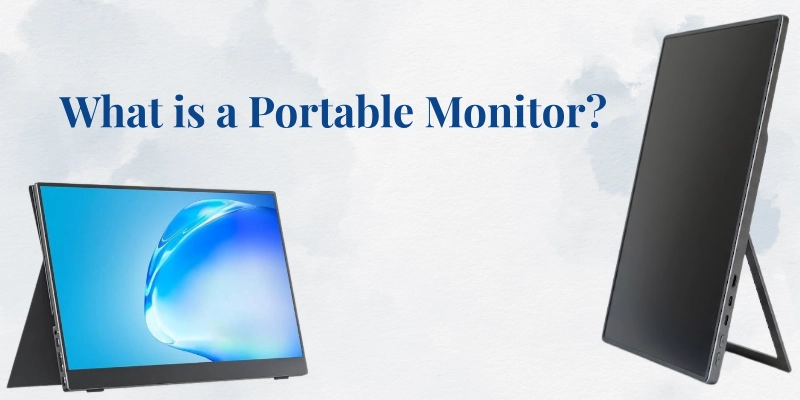
Unlike a desktop monitor that normally stays on a desk, a portable model can fit inside a laptop bag or backpack. You can use it at home, in an office, at a hotel, or in another temporary workspace.
Most portable monitors connect through USB-C, HDMI, or other supported ports. They usually do not have their own operating system. Instead, they receive video from a connected computer, phone, tablet, console, or another compatible device.
What Does a Portable Monitor Do?
The main purpose of a portable monitor is to give you more screen space.
It can:
- Add a second display to your laptop or computer.
- Extend your main screen so you can use different windows on each display.
- Duplicate the same content on both screens.
- Make multitasking easier by keeping related information visible at the same time.
- Provide a larger display for compatible smartphones, tablets, or gaming devices.
For example, you could keep a web browser open on your laptop while using the extra display for a document or spreadsheet.
How Does a Portable Monitor Work?
A portable monitor receives video from another gadget and shows that content on its screen. The exact connection depends on the ports available on both the monitor and the source device.
The basic process is:
- Connect the portable monitor to a compatible device.
- The device sends a video signal to the monitor.
- The monitor receives power through USB-C or another power source, depending on the model.
- The screen displays the content sent from the connected device.
Once connected, your computer or other device may detect the display automatically. You can then choose how you want to use it, such as extending or duplicating the screen.
How Does a USB-C Portable Monitor Work?
A USB-C connection can make setup simple because one cable may carry both video and power between compatible devices.
However, not every USB-C port supports video output. Some USB-C ports are mainly designed for charging or data transfer.
Before relying on a single USB-C cable, check whether your device’s specific port supports display output. The monitor also needs to support the required USB-C connection.
How Does an HDMI Portable Monitor Work?
HDMI sends the video signal from the source device to the display. This is a common connection method for computers, consoles, and other devices with HDMI output.
With HDMI, the monitor may need a separate power connection because HDMI itself does not normally provide enough power to run the display.
The required cable and power setup can vary between models. Always check the ports on both devices before connecting them.
What Devices Can You Connect to a Portable Monitor?
A portable monitor can work with several types of devices, but compatibility depends on the video output of the source device and the connections supported by the display.
Common examples include:
- Laptops: Often connected through USB-C or HDMI.
- Desktop PCs: Can use supported HDMI, DisplayPort, USB-C, or other video connections.
- Tablets: Some tablets can send video to an external display through a compatible USB-C connection.
- Smartphones: Certain phones support external displays through their USB-C ports.
- Gaming consoles: Consoles with suitable video output can connect to compatible displays.
- Handheld gaming devices: Some handheld systems can send their display output to an external monitor.
Before buying or connecting one, check the ports and display-output support of your particular device.
Can You Connect a Portable Monitor to a Laptop?
Yes, a laptop can often be connected to a portable monitor.
Depending on the laptop and display, you may use:
- USB-C
- HDMI
After connecting the monitor, you can normally choose whether to extend the desktop or duplicate the laptop screen.
With an extended desktop, each screen can show different content. This lets you keep a browser, document, or other application on one display while using the laptop screen for another task.
Can You Connect a Portable Monitor to a Phone?
Some phones can connect to an external display, but support varies between models.
A compatible phone may use USB-C to send video to the monitor. However, having a USB-C port does not automatically mean that the phone supports external video output.
The phone may also support specific display modes or software features. Check the phone manufacturer’s specifications before assuming that a particular monitor will work.
Can You Connect a Portable Monitor to a Gaming Console?
Yes, some portable monitors can be used with gaming consoles through HDMI or another supported video connection.
You may also need a separate power source for the display. This depends on the monitor and the console.
A portable display can be useful when you want to play in a location where a TV is not available, such as a bedroom, hotel room, or temporary setup.
Types of Portable Monitors
Portable monitors come in different designs to suit different needs. Some are made mainly for basic second-screen use, while others add features such as touch controls, built-in batteries, or multiple panels.
Standard Portable Monitors
Standard portable monitors are the most common type.
They usually have:
- A lightweight design
- A single display
- A simple connection setup
- A design focused on use as a second screen
They can be suitable for everyday work, study, travel, and general computer use.
Touchscreen Portable Monitors
Touchscreen portable monitors allow you to interact with compatible content directly on the display.
They can be useful for:
- Drawing
- Taking notes
- Presentations
- Touch-based applications
- Creative work
The usefulness of touch support depends on the connected device and the software being used.
Battery-Powered Portable Monitors
Some portable monitors include a built-in battery. This allows the display to operate without being connected directly to a wall outlet in certain situations.
This can be helpful when working outdoors or in places where power outlets are limited.
The trade-off is that a built-in battery can add weight and thickness. You also need to charge the monitor when its battery becomes low.
Dual-Screen Portable Monitors
Dual-screen portable monitors include two displays in one portable setup.
They are designed for people who need more workspace than a single extra screen can provide. For example, you could use one panel for a document and another for a browser.
Because they contain more display hardware, these models are generally larger and heavier than single-screen options.
Foldable or Multi-Screen Portable Monitors
Foldable models are designed to make transportation easier. Their panels can fold together when the display is not being used.
Some models also include multiple panels that can open out to create a wider workspace. These designs can be useful for people who regularly need several screens but still want a setup they can carry.
What Are Portable Monitors Used For?
Portable monitors can be useful in many situations where an additional display would make a task easier.
Remote Work
A portable display can help remote workers manage several tasks at once.
For example, you can keep:
- Emails and documents on one screen
- A video call and notes on another
- A spreadsheet beside a web browser
This can reduce the need to repeatedly switch between open windows.
Studying
Students can use an extra display to separate research from their schoolwork.
For example, you could keep research material or an online lecture on one screen while writing notes or an assignment on the other.
Travel
A portable monitor can turn a laptop into a compact dual-screen workstation.
It can be useful in a hotel, café, shared workspace, or another temporary location where you do not have room for a regular desktop monitor.
Gaming
Portable displays can provide a more flexible gaming setup.
They can be used with compatible gaming consoles and handheld devices, giving you a dedicated screen when a TV or desktop display is not available.
Content Creation
Content creators can use an additional display to separate their editing tools from their reference material or preview.
For example, editing software can remain on the main screen while a video preview, image, script, or reference page stays visible on the second screen.
Presentations
A portable monitor can also be useful during presentations.
A presenter may use the additional display to view notes, supporting information, or other material while the main display shows the presentation to an audience.
Benefits of a Portable Monitor
A portable monitor can be useful when you need additional screen space without committing to a permanent desk setup.
Some of its main benefits include:
- Extra screen space: You can keep more information visible at once.
- Easy to carry: Most models are designed to fit into a bag.
- Quick setup: Compatible devices can often be connected with just a cable or two.
- Useful for multitasking: Different applications can be placed on separate screens.
- Flexible for travel: You can take your extra display to different locations.
- Works with multiple device types: Depending on compatibility, it may work with computers, phones, tablets, and gaming devices.
- Takes less desk space than a traditional monitor: Its smaller design can work well on compact desks.
An extra display does not automatically make every task easier. Its main advantage is that it can reduce the number of times you need to switch between windows when working with multiple types of information.
Disadvantages of a Portable Monitor
Portable monitors also have some limitations. Their compact design involves trade-offs that may matter depending on how you work.
Common disadvantages include:
- Smaller screen size: The display area may not be as large as a desktop monitor.
- May require additional cables: Some setups need separate video and power connections.
- Some USB-C ports do not support video: A USB-C connection alone does not guarantee display output.
- Brightness can be lower: Some portable models may not be as bright as larger desktop displays.
- Limited built-in stand options: Certain models may have basic or less flexible stands.
- Some models need external power: An outlet or power adapter may be necessary.
- Higher-end displays can be expensive: Features such as high resolution, OLED panels, or fast refresh rates can increase the cost.
- Smaller screens may not suit every workflow: People who need a large workspace may prefer a traditional monitor.
These limitations are worth considering before choosing a portable model, especially if you plan to use it as your main display rather than as an extra screen.
Portable Monitor vs Regular Monitor
Portable and regular monitors serve similar basic purposes, but they are designed for different types of setups.
| Feature | Portable Monitor | Regular Monitor |
| Portability | Easy to carry | Designed for a fixed setup |
| Size | Usually smaller | Usually larger |
| Power | Often USB-powered | Usually wall-powered |
| Setup | Quick and simple | More permanent |
| Best for | Travel and flexible work | Desk-based work |
| Stand | Foldable cover/kickstand | Dedicated stand |
| Desk space | Low | Higher |
A portable model makes sense when you move between locations or have limited desk space. A regular monitor may be more suitable when you have a permanent workstation and want a larger display.
The right choice depends on how you plan to use the screen, how often you move it, and how much workspace you need.
Portable Monitor vs Laptop Screen
A laptop screen and a portable monitor are not the same thing, even though both can display content from a computer.
The main differences are:
- A laptop screen is built into the computer.
- A portable monitor is a separate external display.
- A portable monitor gives you additional workspace.
- You can use the laptop screen and external display together.
- A portable monitor does not contain the laptop’s processor, storage, or operating system.
In simple terms, the laptop does the computing while the external display shows the visual information sent to it.
What Features Should You Look For in a Portable Monitor?
When choosing a portable monitor, focus on the features that match your actual needs. A higher specification is not always necessary if you only need a simple second screen.
Screen Size
Portable monitors are available in different screen sizes. Smaller displays are easier to carry, while larger ones provide more room for applications and documents.
Think about the balance between portability and workspace. If you travel frequently, a compact model may be easier to pack. If you mainly use it at a desk, a larger screen may be more comfortable.
Resolution
Resolution describes the number of pixels used to create the image.
Common options include:
- Full HD: Suitable for everyday work, browsing, and general use.
- QHD: Provides more detail and workspace than Full HD.
- 4K: Offers a much higher pixel count and can produce very detailed images.
Higher resolution can look sharper, but it can also increase cost and power requirements. For basic office or study tasks, the highest resolution may not be necessary.
Panel Type
The panel affects how the image looks and how the display behaves.
IPS panels are common and generally offer good viewing angles and image quality.
OLED panels can provide strong contrast and deep blacks, but displays using this technology can cost more.
The better choice depends on your budget and how important image quality is for your work or entertainment.
Brightness
Brightness is commonly measured in nits. It indicates how bright the screen can become.
Brightness matters more when you use the monitor in a bright room, near a window, or while traveling outdoors.
A screen with suitable brightness can be easier to see when surrounding light is strong.
Refresh Rate
Refresh rate is measured in hertz, or Hz. It describes how many times the display can refresh the image each second.
A 60Hz display is common for everyday work and study. Higher refresh rates can make movement look smoother.
Gamers may pay more attention to this specification, especially when playing games that involve fast movement.
Ports and Connectivity
Check the available ports before buying a portable monitor.
Common options include:
- USB-C
- HDMI
- DisplayPort, where supported
- Headphone or audio connections on some models
The ports should match the devices you plan to connect. A monitor with many ports is not necessarily useful if your devices cannot use them.
Weight and Thickness
Weight and thickness matter if you plan to carry the display regularly.
A lighter and thinner model can be easier to put in a laptop bag. However, additional features such as a battery or multiple panels may increase the size and weight.
Stand or Cover
The way the monitor is supported can affect how easy it is to use.
Common options include:
- Kickstands
- Magnetic or folding covers
- Adjustable stands
A good support system can make it easier to position the screen at a comfortable viewing angle.
Touch Support
Touch support can be useful if you want to interact directly with applications on the display.
It may be especially useful for drawing, taking notes, presentations, or other tasks that benefit from touch input.
However, you should also check whether your connected device and software properly support touch interaction.
How to Set Up a Portable Monitor
Setting up a portable monitor is usually straightforward, but the exact process depends on the devices and connections you are using.
Step 1: Check Your Device Ports
First, look at the ports on your computer, phone, tablet, or gaming device.
Check whether it supports USB-C, HDMI, DisplayPort, or another connection supported by the monitor.
Also make sure the USB-C port supports video output if you plan to use USB-C for the display.
Step 2: Connect the Monitor
Use the appropriate cable to connect the monitor to your device.
If your setup uses USB-C for both power and video, one cable may be enough. Other setups may require separate cables for the video signal and power.
Step 3: Provide Power if Needed
If the monitor does not receive enough power from the connected device, connect it to a suitable power source.
This could be a USB power adapter, another USB port, or an internal battery if the monitor has one.
Step 4: Choose Display Mode
After connecting the monitor, your computer may give you several display options.
Common choices include:
- Extend: Use both screens as one larger workspace.
- Duplicate: Show the same content on both displays.
- Second-screen-only: Use the external monitor while turning off the main display.
For multitasking, the extended mode is often useful because each screen can show different content.
Step 5: Adjust Display Settings
Once the monitor is working, you can adjust its settings to suit your setup.
You may want to change:
- Resolution
- Orientation
- Brightness
- Position of the second display
If the external screen is physically placed on the left side of your laptop, for example, you can adjust its position in the operating system so the cursor moves naturally between the two displays.
Do Portable Monitors Need a Power Source?
Yes, portable monitors need power to operate, but the way they receive it depends on the model.
Some can receive power through USB-C from the connected device. Others require a separate power connection.
Battery-powered models have an internal battery and can operate from that battery when suitable.
The important point is that portable does not necessarily mean battery-powered. A monitor can be portable while still needing to connect to a charger, power adapter, or USB power source.
Always check the monitor’s power requirements and the power capabilities of your connected device before using it.
Are Portable Monitors Worth It?
Whether a portable monitor is useful depends on your work habits, devices, and available space. It can be a practical option for people who want another display without building a permanent multi-monitor desk.
A Portable Monitor May Be Useful For:
A portable monitor can be helpful when you regularly work with several types of information at once or need a flexible screen outside a permanent workspace. It can also be useful for people who want more screen space without carrying a full-size desktop monitor.
- Remote workers: An extra display can help keep work applications, documents, or meetings visible.
- Students: Research material and notes can stay visible at the same time.
- Travelers: A portable display can create a temporary dual-screen workspace.
- Programmers: Code and documentation can be kept on separate screens.
- Content creators: Editing tools and previews can be separated.
- Gamers: A compatible monitor can provide a screen away from a TV.
- People with small desks: A compact display can add workspace without taking up as much room as a large monitor.
You May Not Need One If:
A portable monitor is not necessary for everyone. If your current setup already gives you enough screen space or you rarely work with multiple windows, an additional display may not offer much value.
- You rarely use multiple windows.
- You always work at a permanent desk.
- Your current monitor setup already provides enough space.
- Your device cannot support the required connection.
The most useful question is not whether every person needs one. Instead, consider whether an additional display would solve a problem in your particular setup.
Conclusion
A portable monitor is a lightweight external display designed to give you more screen space without requiring a permanent desk setup. You can use it with compatible laptops, computers, phones, tablets, gaming devices, and other sources.
Before buying one, pay close attention to compatibility, connectivity, size, resolution, brightness, and portability. Also check whether your device can provide video through the connection you plan to use and whether the monitor needs a separate power source.
For beginners, the basic idea is simple: a portable monitor gives you a flexible extra screen that you can take wherever you need it.
FAQs
Still have questions about portable monitors? Check out the FAQs below to find simple answers and better understand how these displays work.
A portable monitor is mainly used to provide an additional display for compatible devices. It can be useful for work, studying, gaming, travel, presentations, and other situations where extra screen space is helpful.
It receives a video signal from a compatible device through a supported connection such as USB-C or HDMI and displays that content on its screen. Depending on the model, it may receive power through the same cable or need a separate power source.
Yes, if the monitor is compatible with another device that can send a video signal. Depending on the model, this could include a desktop computer, smartphone, tablet, gaming console, or handheld gaming device.
Some phones support external monitors, but compatibility varies. The phone must support video output through a connection that the monitor can accept.
Yes. However, it may receive power through USB-C, a separate power connection, or its built-in battery if it has one.
A compatible portable monitor can connect to a PS5 or Xbox using a supported video connection, usually HDMI. You should also check the monitor’s power requirements and the cables needed for the setup.
They can be useful for gaming when you want a compact display for a compatible console, gaming PC, or handheld device. Features such as refresh rate, response time, resolution, and connectivity can matter depending on the games you play.
Yes. If your computer supports an external display, you can usually use the portable monitor as an additional screen. You can extend the desktop or duplicate the main display.
Some do, but many do not. A monitor can still be portable even if it needs power from USB or another external source.
A portable monitor is primarily an external display and normally depends on another device for its content. A tablet is a standalone computing device with its own processor, operating system, storage, and applications.
It can serve as the main display in some setups, but its smaller size and portable design may not suit everyone. People who need a large permanent workspace may prefer a regular desktop monitor.





- Be Respectful
- Stay Relevant
- Stay Positive
- True Feedback
- Encourage Discussion
- Avoid Spamming
- No Fake News
- Don't Copy-Paste
- No Personal Attacks
- Be Respectful
- Stay Relevant
- Stay Positive
- True Feedback
- Encourage Discussion
- Avoid Spamming
- No Fake News
- Don't Copy-Paste
- No Personal Attacks
