What is a Monitor and How Does it Show Everything
Published: 5 Nov 2025
Have you ever wondered how you can see everything you do on your computer screen? The answer is simple, it’s all thanks to the monitor!
A monitor is one of the main output devices of a computer. It shows text, images, and videos so you can see what your computer is doing. In short, it’s the screen that displays all the work you do.
In this article, we’ll learn what is monitor, its meaning, parts, functions, types, and more.
What is a Monitor?
A monitor is an output device that displays information from the computer in visual form. It shows text, images, graphics, and videos so you can see and understand what the computer is doing. In simple words, it’s the screen that helps you view everything happening inside your computer system.
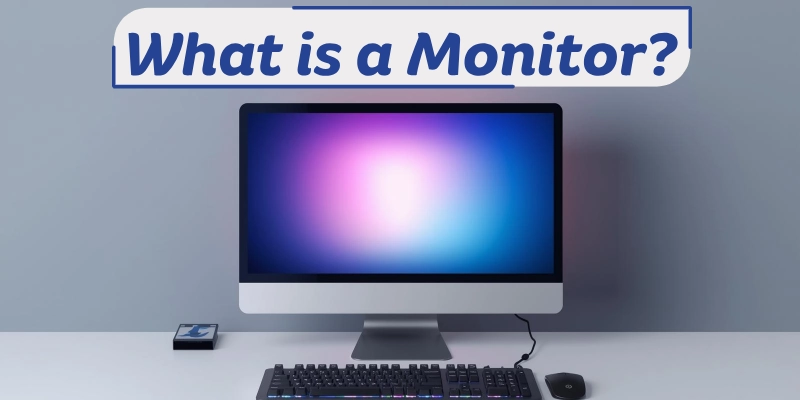
A monitor works almost like a television, but it’s designed for computers. When you give a command to your computer, for example, by clicking a file, typing a sentence, or opening a video, the monitor shows the result instantly. It takes signals from the computer’s video card and turns them into pictures and words you can see.
Monitors come in different sizes, shapes, and technologies, such as LCD, LED, and OLED. Modern monitors offer high-quality visuals that make watching movies, editing photos, or playing games more enjoyable.
Example:
When you type in Microsoft Word or browse the internet, the monitor displays everything you see, from letters and pictures to animations and videos.
History and Evolution of Monitors
The history of monitors started with CRT (Cathode Ray Tube) screens. They were big, heavy, and looked like old TVs, showing text and images using electron beams.
Later came LCD and LED monitors, thinner, lighter, and clearer. They used less power and gave brighter, sharper pictures, marking a big step in the evolution of computer monitor technology.
Today’s monitors include OLED, curved, and touch screen types with high resolution and smart features. They offer better color, speed, and design, making computing more enjoyable and advanced.
Working of a Monitor
The working of a monitor in a computer is quite simple. The graphics card inside the computer sends a video signal to the monitor. The monitor then converts that signal into light and color, forming the pictures, videos, or text you see on the screen.
This process happens so fast that everything appears instantly when you move your mouse or type on the keyboard. That’s how a monitor works to display computer output clearly.
- Display Screen: Shows the final output, like text, images, or videos.
- Circuit Board: Processes and controls the signals received from the computer.
- Power Supply: Provides the electrical energy needed to run the monitor.
- Video Cable: Connects the monitor to the CPU and transfers data signals.
Together, these parts help the monitor display everything you do on your computer in real time.
Parts of a Monitor
A monitor is made up of several parts that work together to display what you see on the screen. Each part has its own role in keeping the monitor running smoothly and showing clear visuals.
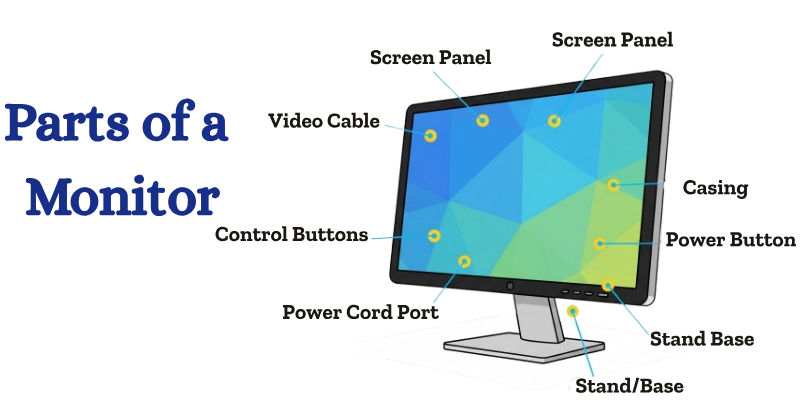
Below is a simple table explaining the parts of the monitor and their functions.
| Part Name | Description |
| Screen Panel | Displays images, videos, and text clearly. |
| Power Button | Turns the monitor ON or OFF. |
| Control Buttons | Used to adjust brightness, contrast, and menu settings. |
| Casing/Body | Protects all internal components of the monitor. |
| Video Cable Port | Connects the monitor to the CPU or graphics card for signal transfer. |
| Power Cord Port | Connects the monitor to the power supply. |
| Stand/Base | Holds the monitor upright and stable on a desk. |
These components of the computer monitor work together to ensure smooth display, easy control, and safe operation.
Functions of a Monitor
A monitor has several important roles in a computer system. Its main function is to show all the work your computer does, making it easier for you to interact, understand, and enjoy multimedia content.
- Output:
One of the main functions of a monitor is to display output from the computer. It shows text, pictures, graphics, and videos, helping users see what the system is doing. - Display:
A monitor gives instant feedback. Whenever you type, click, or move the mouse, the results appear on the screen immediately. This makes it easy to understand whether your action worked or not. - Communication:
Monitors help you communicate visually with the computer. They display menus, buttons, and icons that let you interact with software and perform different tasks easily. - Multimedia:
Another important use of a monitor is for watching movies, playing games, and viewing photos. Modern monitors offer bright colors and sharp visuals, making multimedia experiences more fun and realistic.
Types of Monitors
There are many types of monitors, each designed for different needs. From old bulky screens to modern high-resolution displays, monitors have evolved a lot over time.
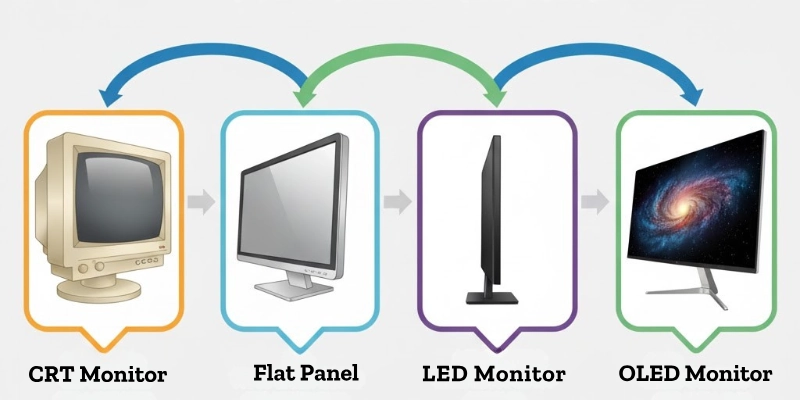
Here are some types of monitors given below.
- CRT Monitor:
CRT (Cathode Ray Tube) monitors are old and bulky. They were used in early computers and TVs and worked using electron beams to display images. - LCD Monitor:
LCD (Liquid Crystal Display) monitors are thin, light, and energy-efficient. They replaced CRTs and offer clearer images for everyday use. - LED Monitor:
LED monitors are similar to LCDs but use LED backlights for brighter and more vibrant colors. They are more energy-efficient and popular today. - OLED Monitor:
OLED (Organic Light-Emitting Diode) monitors provide sharper colors, better contrast, and faster response times. They are ideal for high-quality video and gaming. - Touch Screen Monitor:
Touch screen monitors respond to finger or stylus input. They are widely used in ATMs, tablets, smartphones, and interactive systems. - Curved and 4K Monitors:
Curved and 4K monitors give an immersive viewing experience with wide angles and high resolution. Gamers, designers, and video editors often prefer these for better visuals and comfort.
CRT vs LCD vs LED Monitors
This CRT vs LED monitor comparison shows how monitor technology has improved over time, from heavy and power-hungry CRTs to slim, energy-efficient, and high-quality LED screens.
Here’s a simple monitor comparison to understand the differences between CRT, LCD, and LED monitors:
| Feature | CRT | LCD | LED |
| Size | Bulky | Slim | Slimmest |
| Power Use | High | Low | Very Low |
| Picture Quality | Average | Good | Excellent |
| Color Accuracy | Medium | Better | Best |
| Cost | Cheap | Moderate | Expensive |
| Use | Old computers | Office work | Modern PCs |
Features of a Good Monitor
A good monitor comes with several important features that make it comfortable and efficient to use. Here are the key features of a monitor you should look for:
- High Resolution: HD, Full HD, or 4K resolution provides clear and sharp images.
- Better Refresh Rate: Higher refresh rates like 60Hz or 120Hz make movements smooth, especially in games and videos.
- Correct Screen Size: Choose the screen size based on your use, small for office work, large for gaming or designing.
- Accurate Color Display: Ensures colors look natural and vibrant for photos, videos, and graphics.
- Energy Efficiency: Consumes less power, saving electricity and reducing heat.
- Adjustable Stand or Mount: Lets you adjust height, tilt, or rotation for comfortable viewing.
These monitor specifications help you select the best monitor for work, study, or entertainment.
Uses of a Monitor in Daily Life
Monitors are an important part of our daily lives, helping us in many ways. Here are some common uses of a monitor:
- Education: Used for online classes, reading, and research, making learning easier and interactive.
- Office Work: Helps in writing documents, sending emails, and making presentations efficiently.
- Gaming: Provides high-speed graphics and smooth visuals for an enjoyable gaming experience.
- Designing: Essential for photo editing, video editing, and graphic design, showing accurate colors and details.
- Entertainment: Lets you watch movies, videos, and stream content with clear visuals and vibrant colors.
A monitor in daily life makes work, learning, gaming, and entertainment more engaging and effective.
Advantages and Disadvantages of a Monitor
Monitors are essential for using a computer, but like any device, they have benefits and drawbacks. Here’s a simple comparison:
| Aspect | Advantages | Disadvantages |
| Display Quality | Shows clear text, images, and videos. | Old or low-quality monitors may have blurry or dull visuals. |
| Interaction | Provides instant feedback for user actions. | Small or low-resolution screens can limit productivity. |
| Variety | Available in many sizes and types for different needs. | Advanced monitors like OLED or 4K can be expensive. |
| Entertainment | Ideal for movies, games, and multimedia. | Extended use may cause eye strain or fatigue. |
| Design & Work | Helps in designing, editing, and producing professional work with accuracy. | Bulky monitors like CRTs take up space and are less portable. |
A monitor is an essential computer output device that makes work, learning, gaming, and entertainment possible, but choosing the right type is important to maximize benefits and minimize drawbacks.
Parts of the Monitor vs Display Devices Comparison
This comparison helps you understand how a monitor differs from a projector or TV, even though all are output devices. Here’s a simple comparison of monitors vs other display devices like projectors and TVs:
| Device | Function | Type |
| Monitor | Displays computer output | Output Device |
| Projector | Shows large screen output | Output Device |
| TV | Displays entertainment content | Output Device |
How to Take Care of a Monitor?
Taking proper care of your monitor helps it last longer and keeps the display clear. Here are some simple monitor care tips:
- Keep the screen clean: Use a soft, dry cloth to remove dust and fingerprints.
- Avoid touching the screen: Direct contact can leave smudges or damage the display.
- Use a screen protector: It helps prevent dust, scratches, and accidental damage.
- Turn off when not in use: Saves power and extends the monitor’s life.
- Adjust brightness: Reduces eye strain and protects the screen from excessive wear.
Following these monitor maintenance steps ensures a clear, safe, and long-lasting display.
Future of Computer Monitors
The future of monitor technology looks exciting and advanced. New innovations aim to make screens sharper, more interactive, and user-friendly.
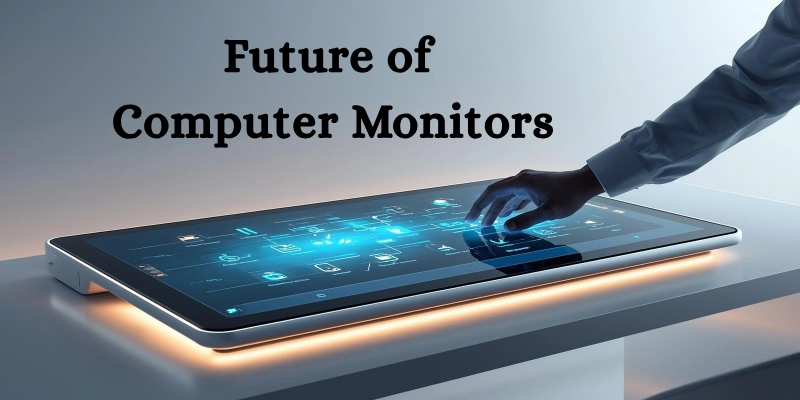
Here are some trends in modern monitor technology:
- 8K Resolution Displays: Ultra-high definition screens for extremely clear and detailed visuals.
- Curved, Foldable, and Ultra-Wide Screens: Offer immersive viewing and flexible designs for work and entertainment.
- Touch and Gesture-Based Monitors: Allow interaction without a mouse or keyboard, making tasks faster and intuitive.
- Eye Safety and Power Efficiency: Monitors will focus on reducing eye strain and consuming less energy, making them healthier and eco-friendly.
These advancements show that monitors will become smarter, safer, and more versatile, changing the way we work, play, and interact with computers.
Conclusion
A monitor is an essential output device that displays text, images, videos, and all the work done on a computer. It helps us interact with the system, view multimedia, and perform daily tasks efficiently.
Understanding what is monitor and its computer monitor meaning shows why it is such a crucial part of every computer setup.
Monitors make our digital world visible. Without them, computers would be like speaking without sound!
FAQs
Still have questions? Check out our FAQs below to learn more about monitors and how they work!
A monitor is an output device that shows text, images, and videos from a computer. It lets you see everything happening on your system.
The three main types are CRT, LCD, and LED monitors. Each type has a different size, display quality, and energy use.
A monitor displays output, gives feedback for user actions, and helps you interact visually with the computer.
A computer usually has one monitor, but you can connect multiple monitors for better multitasking.
Common problems include flickering, blurry display, and no signal. These can happen due to cable issues or hardware faults.
Turn it on and see if it displays the computer output. You can also check cables and power connections to make sure everything is working.
The main parts are the screen panel, circuit board, power supply, and video cable port. They work together to show images and videos clearly.






- Be Respectful
- Stay Relevant
- Stay Positive
- True Feedback
- Encourage Discussion
- Avoid Spamming
- No Fake News
- Don't Copy-Paste
- No Personal Attacks
- Be Respectful
- Stay Relevant
- Stay Positive
- True Feedback
- Encourage Discussion
- Avoid Spamming
- No Fake News
- Don't Copy-Paste
- No Personal Attacks
